

Saving a Page
There are three ways to save a web page:- Share sheet: tap the share button in any app and choose sideBar to save the current page instantly. sideBar queues the page right away, then finishes processing in the app. When the sideBar app is already open, the pending website appears there immediately while the save continues. See Widgets & Extensions to enable it.
- Safari extension: tap the sideBar button in your browser toolbar to save the page without leaving it. When the sideBar app is already open, the website appears there right away and then updates as saving finishes. See Widgets & Extensions to set it up.
- Manual URL entry: tap + in the Websites tab and paste or type the URL directly.
Supported Sites
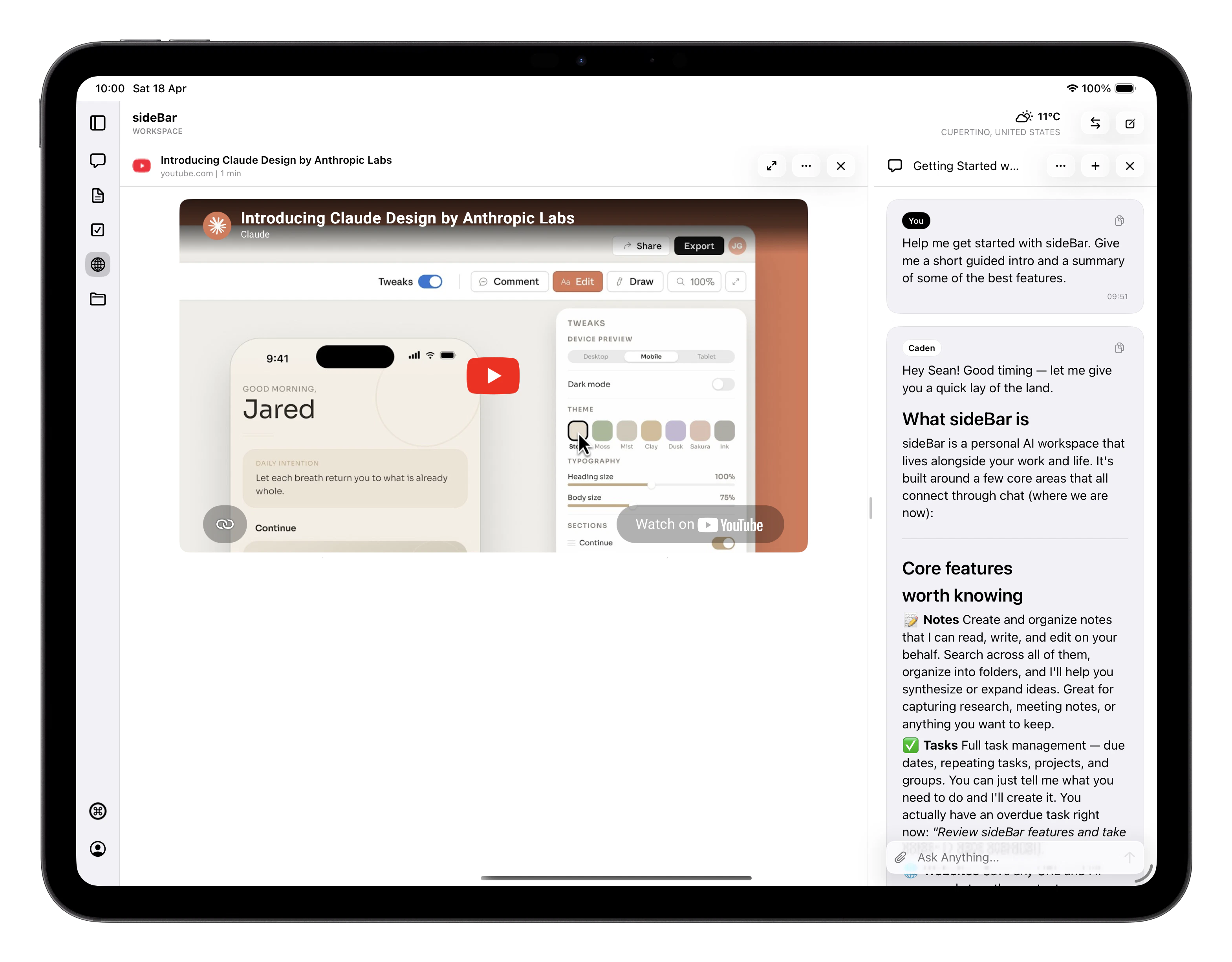
sideBar has custom parsers for a range of popular sites, giving you cleaner content and richer extraction than a generic fetch. For some sites this means getting meaningfully more — YouTube transcripts, full Substack articles, or Twitter/X tweets with author and date. For others it means noise and chrome stripped out for a better reading experience across publications like The Verge, Wired, and HBR. For all other websites, sideBar uses a general-purpose parser that works well across most publications and blogs. Note that paywalled publications (such as the New York Times, Financial Times, and Bloomberg) will only yield as much content as the site makes available to non-subscribers. sideBar will flag when a saved page appears to be paywalled.YouTube Support
Managing Your Web Pages
- Pin important pages to keep them at the top of your list.
- Archive pages you’re finished with. Archived pages aren’t deleted, you can always find them again.
- Rename any page by tapping its title.
- Delete a page to remove it permanently.
- Search across your saved pages by title, domain, or page content. A useful way to find something when you can’t remember where you saved it.
Reading a Saved Page
Open any saved page to see its full content. Tap the page title to open the original URL in your default browser. Text is selectable if you want to copy a passage. On iPad, closing a page also exits the expanded reading view and returns you to the normal split layout. Saved pages stay available offline on the devices that have already cached them. Archived pages follow the same rule. If a page has never been cached on the current device, sideBar tells you it is not available offline yet.Working with sideBar on a Page
With a page open, sideBar can see the full content and work with you on it. Ask it to summarise the article, explain a concept, pull out key points, draft notes, or find related information. See Chat for more on how sideBar uses what you have open.Export and Sharing
From any saved page you can:- Export as markdown: saves a
.mdfile you can open in any text editor. - Copy the title, URL, or full markdown content with a single tap, handy for pasting into a note, message, or document.