

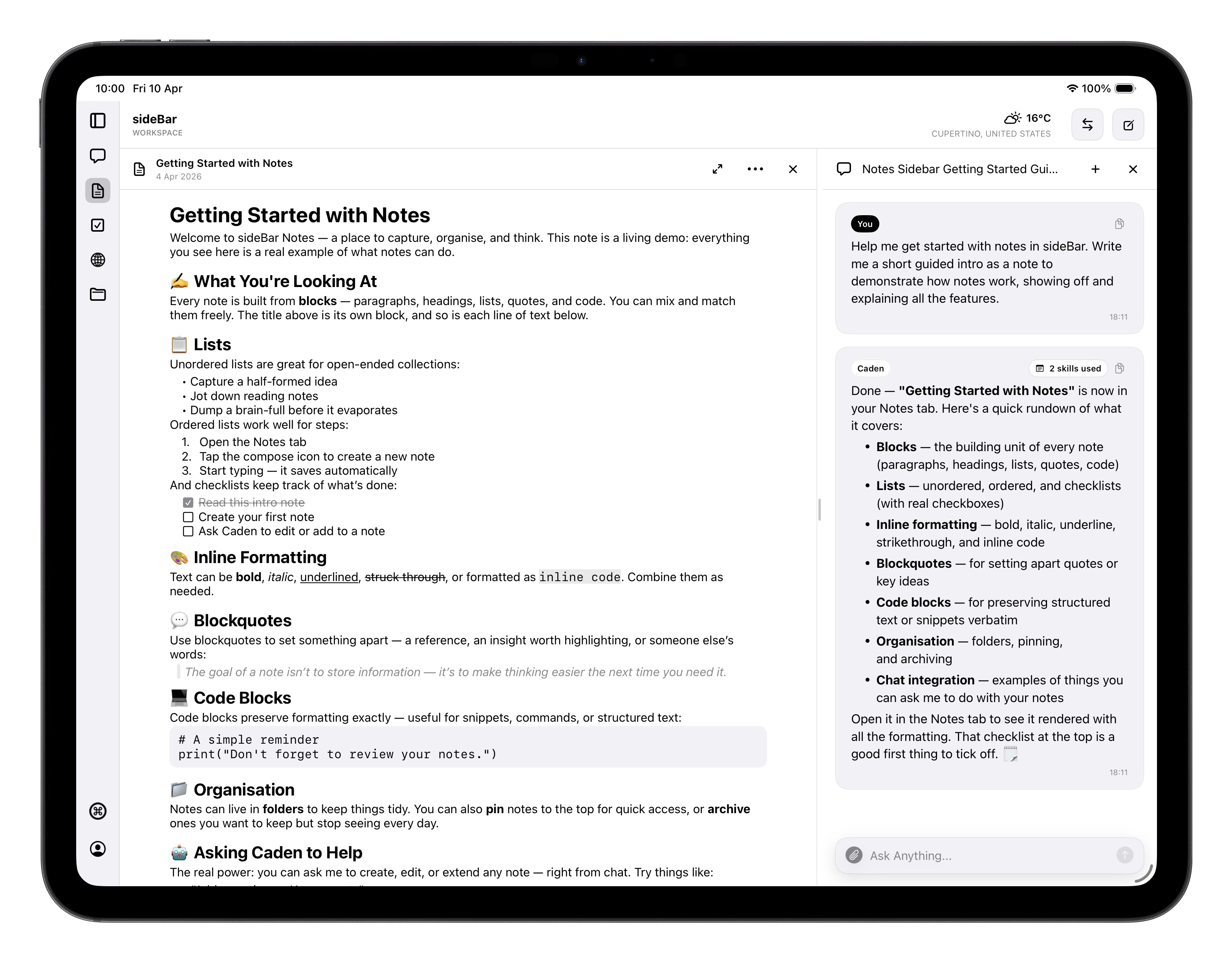
Organisation
Notes live in a hierarchical folder structure. You can create folders inside folders to whatever depth makes sense for how you work. Individual notes sit inside those folders. Pinning keeps a note at the top of the notes view. Useful for anything you reach for constantly. Notes you don’t need day-to-day can be archived instead of deleted; the folder view shows an archived count so nothing is hidden from you.Creating and Editing
Create a new note from the menu. A note’s title comes from its first line, so whatever you write first becomes the title, no separate naming step required. Changes save automatically as you write; a Saved indicator appears briefly to confirm each save. The editor remembers your cursor position, so when you come back to a note it’s exactly where you left off. On iPad, closing a note also exits the expanded note view and returns you to the normal split layout. Notes are local-first. If you create or edit a note while offline, the change is applied immediately on that device and syncs automatically when you reconnect.Formatting
Notes use rich text. On iPhone and iPad, tap thetextformat button in the
editor controls to open the formatting popover. On macOS, click the floating
textformat button at the top right of the editor. The popover lets you change
the current line’s text style or apply inline formatting to the current
selection.
Available formatting includes:
- Text styles: Body, Title, Heading, Subhead
- Inline formatting: Bold, Italic, Underline, Strikethrough, Inline Code
- Lists: type
-or*to start a bulleted list, or1.to start a numbered list - Checklists: type
[]to start a checklist item
-or*for a bulleted list1.for a numbered list[]for a checklist item
Note Actions
From the context menu (long-press a note in the list) or the toolbar menu when viewing a note, you can:- Pin / Unpin: keeps the note at the top of the notes view
- Move: reassign the note to a different folder
- Copy Text: copies the note content to your clipboard
- Share Text: opens the system share sheet with the note content
- Download: exports the note as a plain text file
- Archive / Unarchive: moves the note out of your main view without deleting it
- Delete: permanently removes the note after a confirmation prompt