

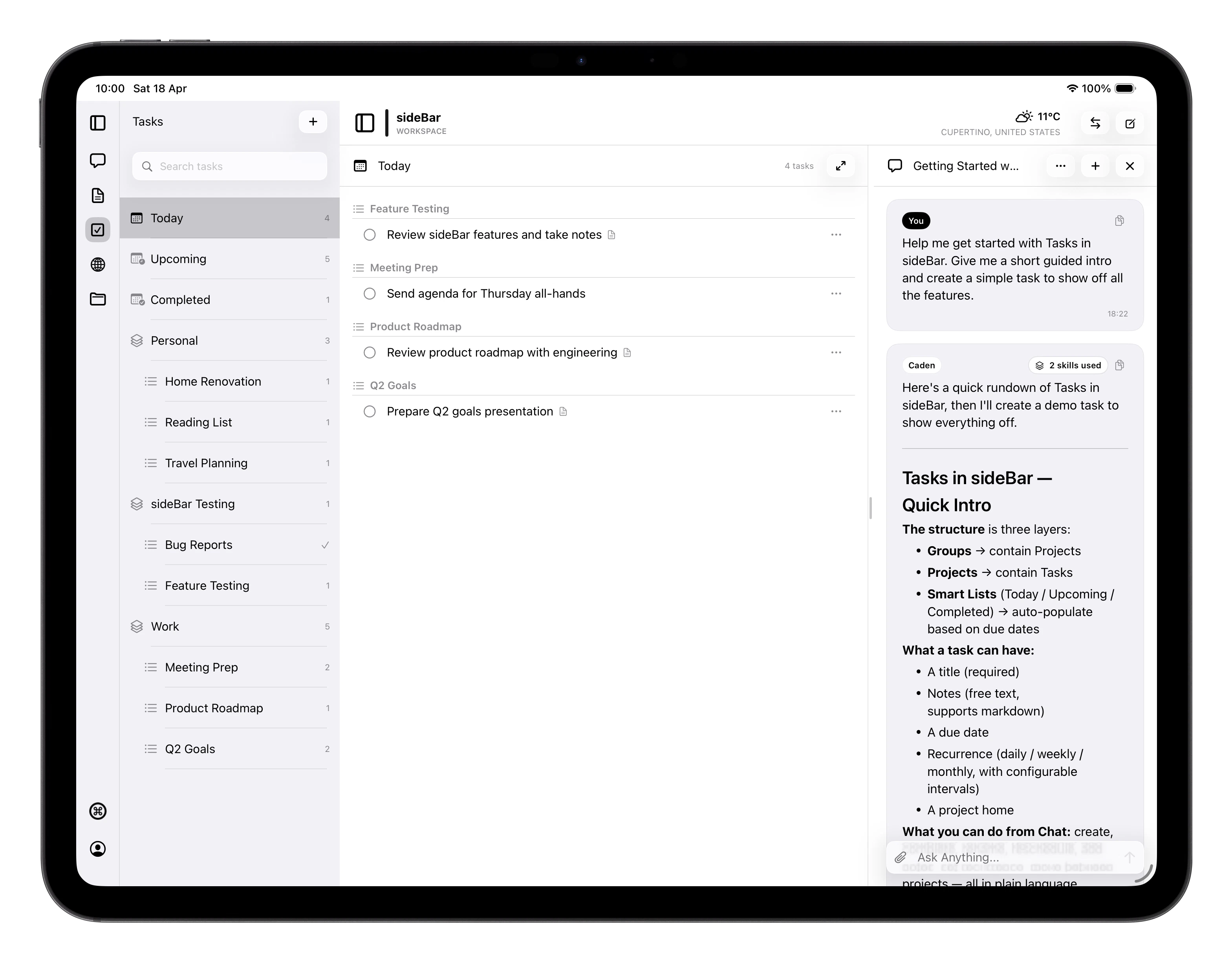
Smart Lists
sideBar gives you three built-in smart lists that update automatically based on your tasks.- Today: tasks due today.
- Upcoming: tasks with a future due date, sorted chronologically.
- Completed: tasks you’ve finished.
Opening Today Automatically
If you have incomplete tasks due today, sideBar opens the Today list the first time you launch the app on that device each day. Later launches on the same day return to the workspace you were using before.Groups and Projects
For more structure, you can create Projects which are individual task lists. When you have several related projects, you can gather them inside a Group to keep everything well organised. Swipe right on any project or group to rename it, or swipe left to delete it.Creating a Task
Tap the + button from any task view. The new task sheet includes:- Title (required)
- Notes (optional: anything extra you want to remember)
- Due date (optional)
- List: choose which project or smart list the task belongs to; defaults to Today
Task Properties and Actions
Once a task is saved, you can:- Complete or uncomplete it by tapping the circle next to the title.
- Rename it by tapping into the title field.
- Add or edit notes: notes save automatically as you type.
- Set or clear a due date using the date picker.
- Move the task to a different project or smart list.
- Set recurrence: choose daily, weekly, or monthly, configure the interval (every N days, weeks, or months), and set a start date. sideBar tracks when the next instance is due and surfaces it in the right smart list automatically.
- Delete the task. You’ll be asked to confirm before it’s removed.