

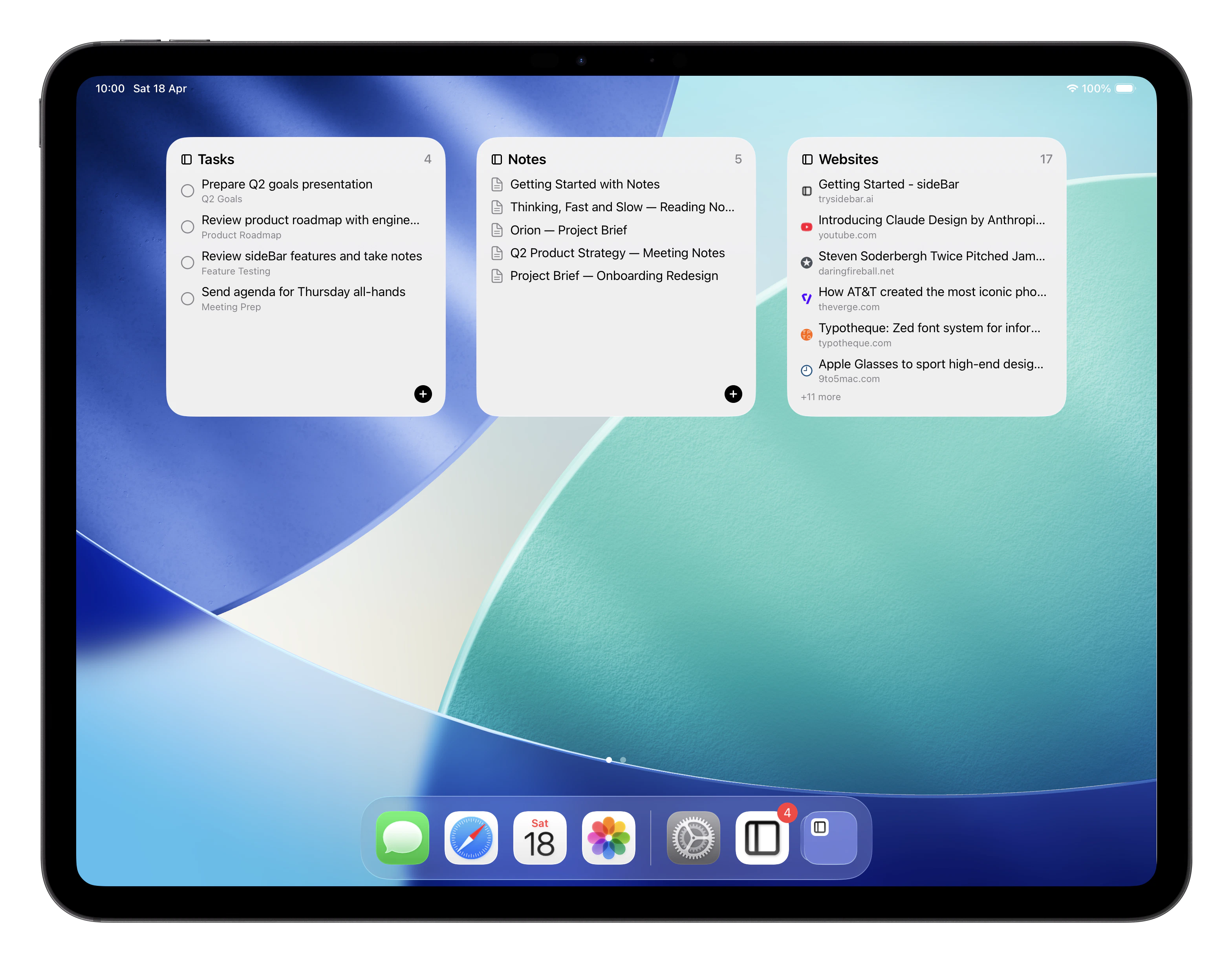
Home Screen Widgets
sideBar offers five widget types for your iPhone, iPad, or Mac home screen, in small, medium, and large sizes:- Today’s Tasks: your tasks for today with interactive checkboxes to complete them. Tapping the add button opens the app to create a new task. See Tasks for more on how tasks work.
- Task Count: a compact progress ring showing how many tasks you’ve completed today.
- Pinned Notes: quick links to your pinned notes. If you have not pinned any notes yet, sideBar shows your most recent notes instead. See Notes for how to pin a note.
- Saved Websites: your saved websites with favicons. Pinned websites appear first, followed by your most recent saved websites. See Websites for how to save sites.
- Pinned Files: your pinned files with file-type icons. See Files for how to pin a file.
- Long-press an empty area of your home screen until it enters edit mode.
- Tap the + button in the top corner.
- Search for sideBar and select the widget type and size you want.
- Tap Add Widget, then drag it into position.
- Click the date and time in the menu bar, then click Edit Widgets.
- Search for sideBar and click the + next to the widget you want.
Lock Screen Widgets
On iPhone and iPad, sideBar widgets are also available on your lock screen in three compact styles — circular, rectangular, and inline — for tasks, notes, websites, and files. To add a lock screen widget:- Long-press your lock screen and tap Customise.
- Tap the lock screen face area and select the widget slot you want to fill.
- Search for sideBar and choose a widget.
Share Extension
The Share extension lets you send content from any app — Safari, Mail, Photos, Files, and others — directly into sideBar, without switching apps. You can share: To enable the Share extension:- Tap the share button in any app.
- Scroll right in the row of app icons and tap More.
- Find sideBar in the list and toggle it on.
Safari Extension
The Safari extension adds a sideBar button to Safari’s toolbar so you can save the current page to sideBar with a single tap. Available on iPhone, iPad, and Mac. To enable on iPhone or iPad:- Open the Settings app and scroll down to Safari.
- Tap Extensions, then tap sideBar.
- Toggle the extension on and grant it permission to run on websites.
- To show the button in the toolbar, tap the aA button in Safari’s address bar, then tap Manage Extensions and enable sideBar.
- Open Safari and go to Settings → Extensions.
- Tick the sideBar checkbox.
- Grant permissions for the websites you want it to work on (or all websites).