

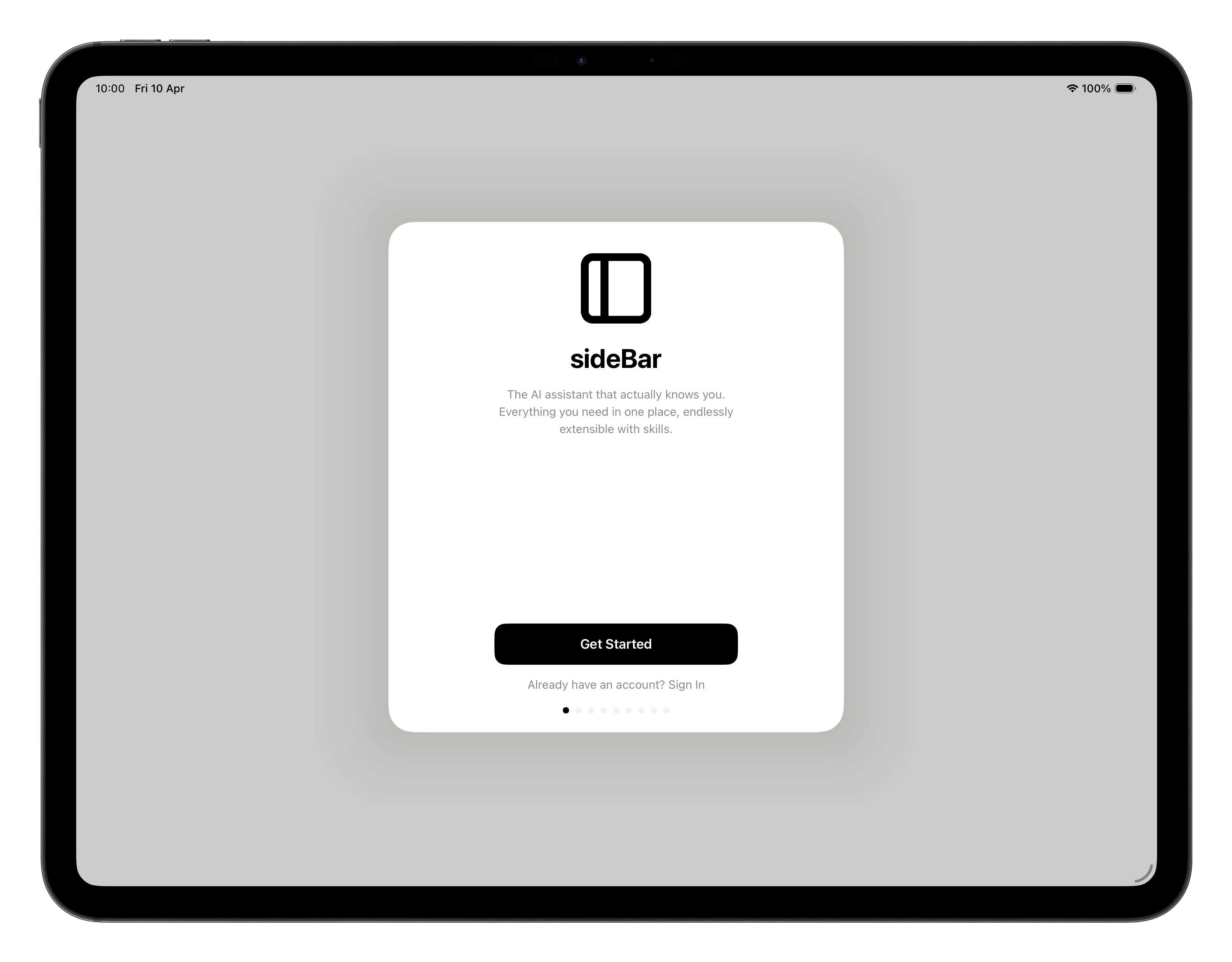
Creating an Account
When you open sideBar for the first time, you’ll be asked to create an account. Tap Create Account, enter your email address, and follow the verification link that arrives in your inbox. If you already have an account, tap Sign In and enter your credentials.Connecting a Provider
Before you can chat with sideBar, you need to connect an AI provider. sideBar supports three: Anthropic, OpenAI, and Google. You’ll need an API key from whichever one you choose. sideBar will walk you through this step automatically when you first sign in. Choose your provider, paste your API key into the field, and confirm. Once connected, you’re ready to start. If you don’t have an API key yet, see API Keys for step-by-step instructions for each provider. Chatting with sideBar isn’t available without one but you can still use it to take notes, keep track of tasks, save websites to read later and upload files.The Onboarding Conversation
Once your chosen AI provider is connected, sideBar starts a short calibration conversation in Chat before feature discovery begins. This is where sideBar works out how it should collaborate with you. Before the first question, sideBar shows a short intro card that explains what this final setup step is for and why it matters. The calibration is lightweight and mostly tap-based. sideBar asks:- What would you most like help with first?
- How would you like it to work with you?
- How should it show up?
Finding Your Way Around
After onboarding, you land in the main app. The navigation bar sits at the bottom of the screen on iPhone, or in the left rail on iPad, Mac, and in a web browser. It has six sections:- Chat: where you talk to sideBar and get things done.
- Notes: create and organise notes sideBar can read and reference.
- Tasks: manage to-dos manually or ask sideBar to create them for you.
- Websites: save and browse webpages sideBar can reference.
- Files: upload documents you want sideBar to read, summarize, or work with.
- Skills Store: browse and install additional capabilities.