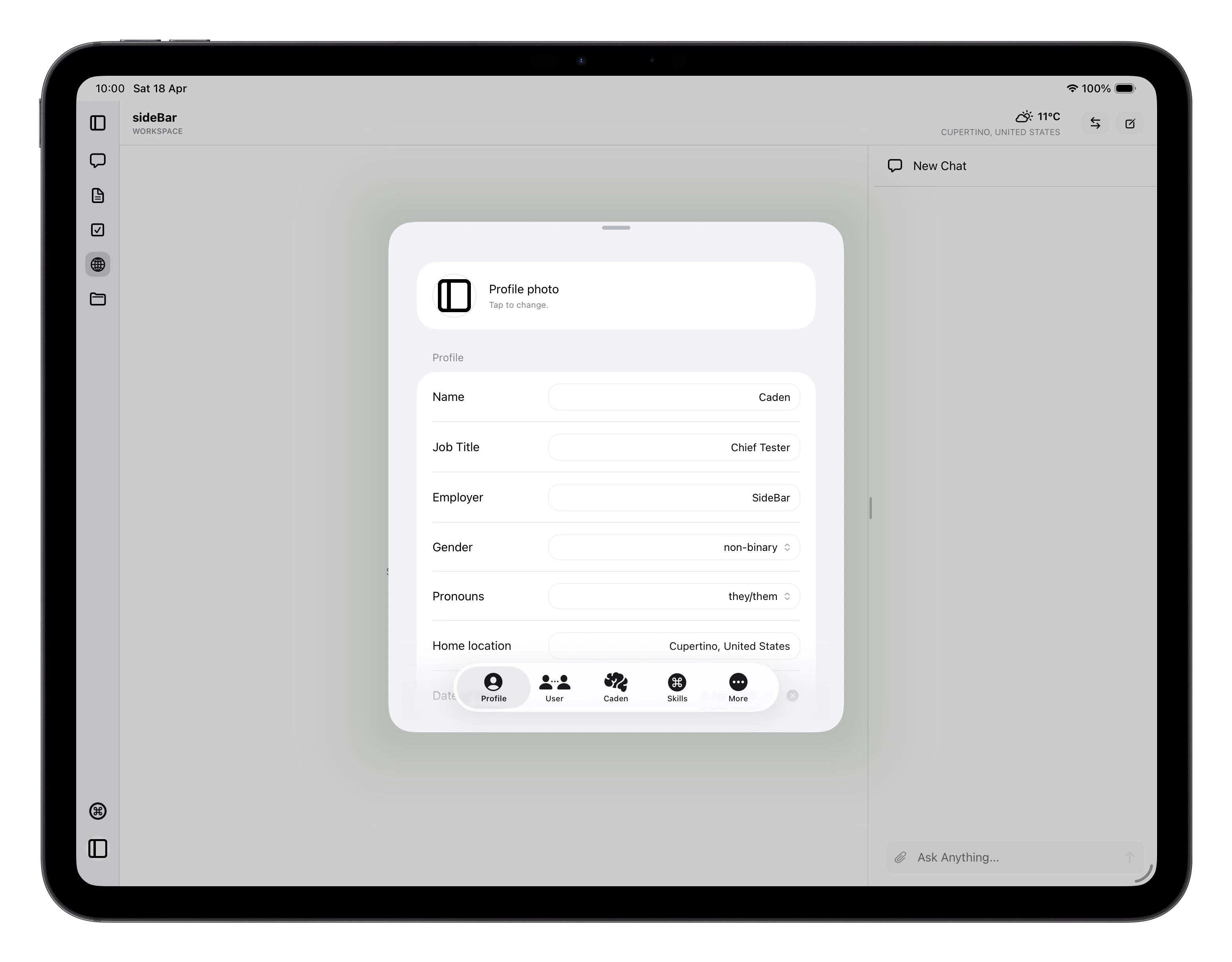
sideBar settings
Settings is where you manage your profile, shape how sideBar works with you, and configure the app. It’s divided into six tabs — Profile, User, sideBar, Skills, Memories, and App — each covering a distinct area.

Profile

Your profile holds the personal details sideBar can draw on during conversations when they’re relevant. Tap your profile photo to replace it from your camera roll or photo library. You can edit the following fields:
  • Name, Job title, Employer, Location are free-text fields
  • Gender and Pronouns can be selected from a menu
  • Date of birth is optional
Changes save automatically as you type. Sign out appears at the bottom of this section.

User

The User tab controls how sideBar communicates and collaborates with you. Communication style: how sideBar speaks with you. Describe what you want however you like, from casual and conversational to formal and precise. Working relationship: the dynamic between you. Whether sideBar acts as a collaborative partner, a coach, a teacher, or something else is yours to define. If you made changes while offline, a Sync status panel appears here showing how many writes are pending. They queue up and sync automatically once your connection returns. Tap View pending changes to see exactly what’s waiting. This tab is named after your assistant and covers its AI configuration, identity, and soul. AI Provider: choose which provider powers sideBar: Anthropic, OpenAI, or Google. Once you’ve selected a provider, add your API key. Your key is encrypted before being stored and only the last four characters are shown as confirmation and the full key is never displayed again. Identity: your assistant’s name, tone, values, and boundaries. These are managed by sideBar itself; you can read them here but only sideBar updates them. Soul: sideBar’s purpose, operating principles, adaptation policy, and success signals. Also managed by sideBar and read-only here. See Personality for a full explanation of how identity and soul work and how they evolve over time.

Skills

Manage which skills are active. Skills are grouped into three tiers. Use the filter at the top to switch between Standard, Store, and Required. The Enable all toggle turns every skill in the current tier on or off at once. Individual rows let you toggle them independently. Tapping a Store skill opens its detail view, where you can see its full description, requirements, and any API credentials it needs. See Skills and Skills Store for more on what skills are and how they work.

Memories

Memories are reference documents sideBar draws on during every conversation. As you work together, sideBar creates new memories automatically, capturing things like your preferences, recurring context, and details about your work, so it gets better at helping you over time. You can also add, edit, and search your memories here. sideBar reads relevant memories automatically; you don’t need to mention them in conversation.

App

Text size: choose System (follows your device’s accessibility setting), Small, Medium, or Large. Biometric lock: require Face ID or Touch ID each time you open sideBar. This option only appears if your device supports biometric authentication. Temperature units: set whether weather shown to sideBar uses Celsius or Fahrenheit.