

Supported File Types
sideBar accepts a wide range of file formats, organised into folders by type:- Documents: PDFs, Word documents, and plain text files
- Images: JPG, PNG, and other common image formats
- Audio: audio recordings and other common audio formats
- Video: video files
- Spreadsheets: Excel workbooks and CSV files
- Reports: structured report formats generated by sideBar
- Presentations: PowerPoint and similar formats
Adding Files
Tap the + button in the Files tab to open the file picker, then choose a file from your device. You can also share files directly from other apps using the sideBar Share extension, see Widgets & Extensions to set it up. After you select a file, sideBar begins ingesting it right away. If you are offline, the import is queued locally and continues when you are back online. Ingestion moves through three stages: uploading, processing, and ready. You can watch the status update in real time on the file card. If something goes wrong during processing, the card shows an error state with a Retry button, tap it to try again without re-uploading.The File List
Each file in your list shows its filename, size, type, and upload date at a glance. Two organizational tools help keep the list manageable:- Pin files you reach for often, they stay at the top of the list.
- Archive files you no longer need active, they move out of the main view. A count of archived files appears at the bottom of the list so you can restore them any time.
Viewing Files
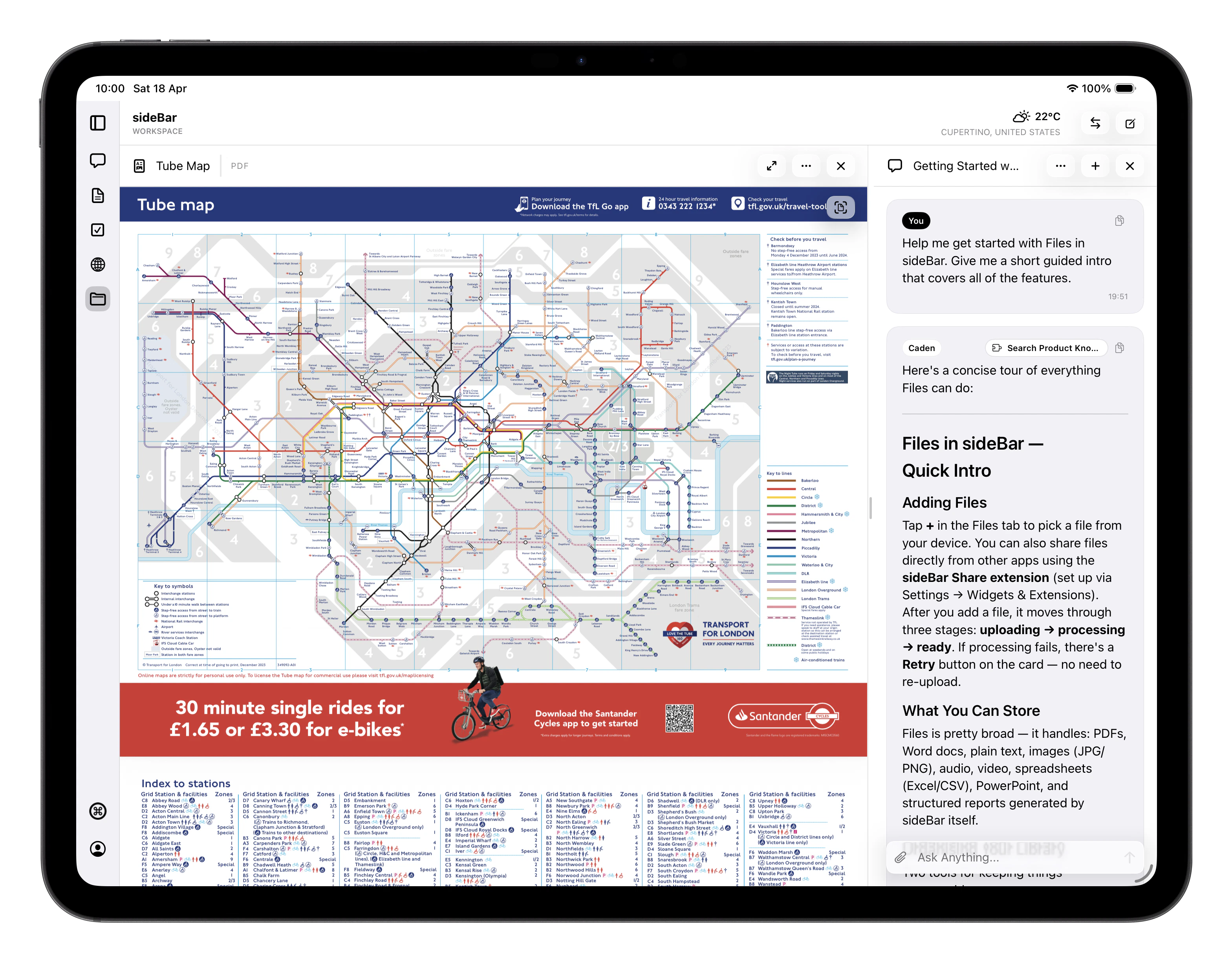
Tap any ready file to open it in the built-in viewer:- PDFs: full-page viewer with page navigation and pinch-to-zoom
- Spreadsheets: scrollable grid view with column headers
- YouTube videos: in-app player alongside the extracted plain-text transcript
- Images: full-screen display
- Text and Markdown: rendered preview
Using Files with sideBar
Once a file reaches the ready state, its content is indexed and sideBar can search and reference it during any conversation. You can also attach a specific file directly to a chat message to upload it and give sideBar focused context on that file.Skill-Generated Files
Some skills save files to your library automatically. For example, the Audio Transcription skill saves completed transcripts as markdown files in a Transcripts folder, and the YouTube skills save downloaded audio and transcripts to a Videos folder. These files behave exactly like any file you uploaded manually — they are indexed, viewable, and available to sideBar in conversation.File Actions
Tap the menu on any file card to access these actions:- Delete: permanently removes the file and its index
- Archive / Restore: moves the file out of (or back into) the active list
- Pin / Unpin: controls whether the file stays at the top of your list