> ## Documentation Index
> Fetch the complete documentation index at: https://docs.trysidebar.ai/llms.txt
> Use this file to discover all available pages before exploring further.
# Websites
{/* TODO: alt text — replace with a rich, specific description of what's shown (for screen readers and AI crawlers) */}
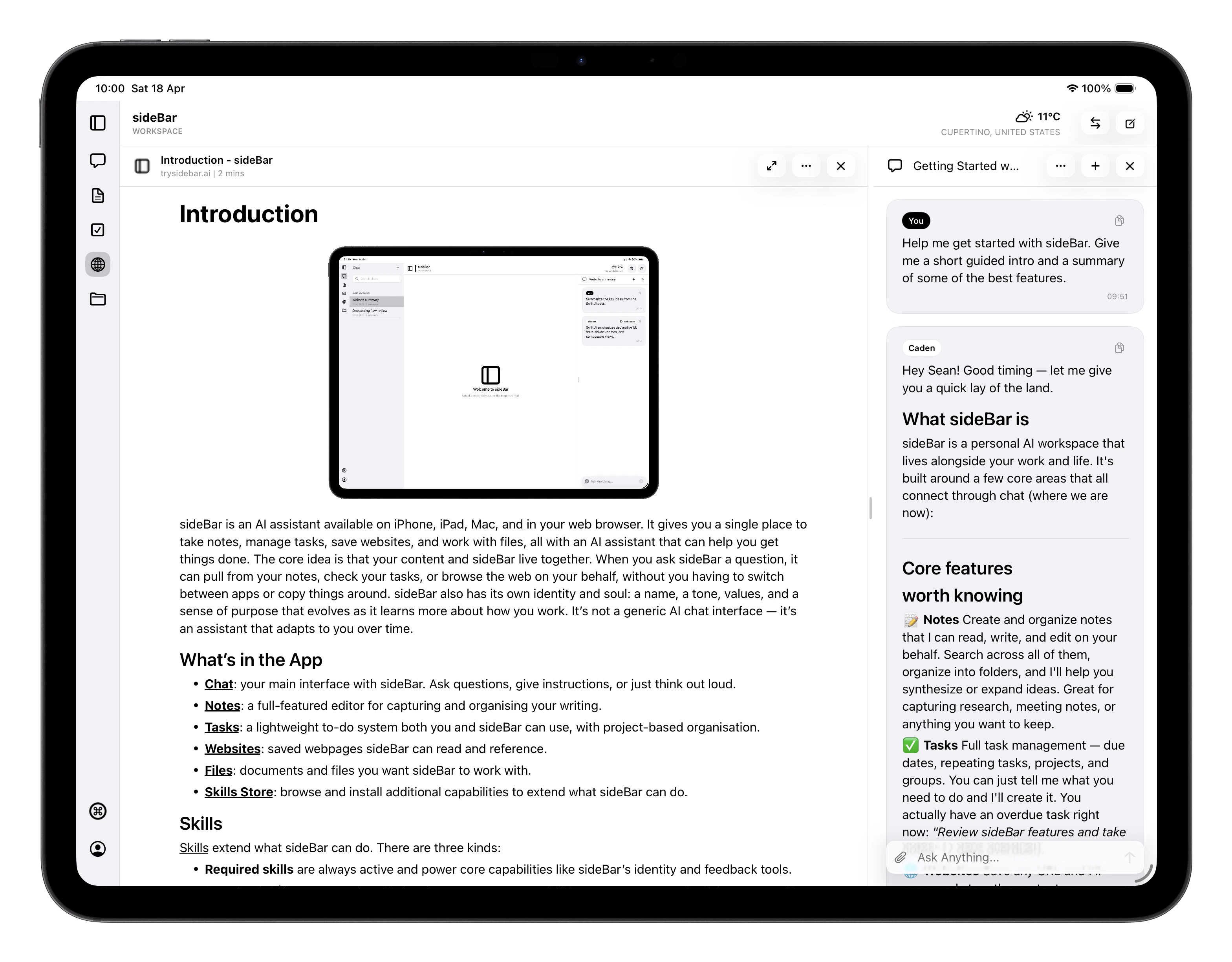 Websites is a read-it-later service built into sideBar. Save pages you want to
read, and they're stored on-device for offline reading once that device has
cached them, and available to
sideBar so you can work with the content together: summarise it, ask questions
about it, take notes, or dig deeper with further research.
## Saving a Page
There are three ways to save a web page:
* **Share sheet**: tap the share button in any app and choose sideBar to save
the current page instantly. sideBar queues the page right away, then finishes
processing in the app. When the sideBar app is already open, the pending
website appears there immediately while the save continues.
See [Widgets & Extensions](/manual/extensions) to enable it.
* **Safari extension**: tap the sideBar button in your browser toolbar to
save the page without leaving it. When the sideBar app is already open, the
website appears there right away and then updates as saving finishes. See
[Widgets & Extensions](/manual/extensions) to set it up.
* **Manual URL entry**: tap **+** in the Websites tab and paste or type the
URL directly.
Once saved, sideBar fetches the page and automatically extracts the title,
domain, favicon, full page content, and estimated reading time. If a
publication date is detectable, that's saved and displayed too. You can rename
the title any time after saving. As soon as processing finishes, the saved page
is added to your Websites list and is ready to open without waiting for a
manual refresh.
If you save a page while offline, sideBar still adds it to your list right away
and queues the save for later. The page content finishes downloading and
processing when you are back online.
## Supported Sites
sideBar has custom parsers for a range of popular sites, giving you cleaner
content and richer extraction than a generic fetch. For some sites this means
getting meaningfully more — YouTube transcripts, full Substack articles, or
Twitter/X tweets with author and date. For others it means noise and chrome
stripped out for a better reading experience across publications like The
Verge, Wired, and HBR.
For all other websites, sideBar uses a general-purpose parser that works
well across most publications and blogs.
Note that paywalled publications (such as the New York Times, Financial Times,
and Bloomberg) will only yield as much content as the site makes available to
non-subscribers. sideBar will flag when a saved page appears to be paywalled.
## YouTube Support
{/* TODO: alt text — replace with a rich, specific description of what's shown (for screen readers and AI crawlers) */}
Websites is a read-it-later service built into sideBar. Save pages you want to
read, and they're stored on-device for offline reading once that device has
cached them, and available to
sideBar so you can work with the content together: summarise it, ask questions
about it, take notes, or dig deeper with further research.
## Saving a Page
There are three ways to save a web page:
* **Share sheet**: tap the share button in any app and choose sideBar to save
the current page instantly. sideBar queues the page right away, then finishes
processing in the app. When the sideBar app is already open, the pending
website appears there immediately while the save continues.
See [Widgets & Extensions](/manual/extensions) to enable it.
* **Safari extension**: tap the sideBar button in your browser toolbar to
save the page without leaving it. When the sideBar app is already open, the
website appears there right away and then updates as saving finishes. See
[Widgets & Extensions](/manual/extensions) to set it up.
* **Manual URL entry**: tap **+** in the Websites tab and paste or type the
URL directly.
Once saved, sideBar fetches the page and automatically extracts the title,
domain, favicon, full page content, and estimated reading time. If a
publication date is detectable, that's saved and displayed too. You can rename
the title any time after saving. As soon as processing finishes, the saved page
is added to your Websites list and is ready to open without waiting for a
manual refresh.
If you save a page while offline, sideBar still adds it to your list right away
and queues the save for later. The page content finishes downloading and
processing when you are back online.
## Supported Sites
sideBar has custom parsers for a range of popular sites, giving you cleaner
content and richer extraction than a generic fetch. For some sites this means
getting meaningfully more — YouTube transcripts, full Substack articles, or
Twitter/X tweets with author and date. For others it means noise and chrome
stripped out for a better reading experience across publications like The
Verge, Wired, and HBR.
For all other websites, sideBar uses a general-purpose parser that works
well across most publications and blogs.
Note that paywalled publications (such as the New York Times, Financial Times,
and Bloomberg) will only yield as much content as the site makes available to
non-subscribers. sideBar will flag when a saved page appears to be paywalled.
## YouTube Support
{/* TODO: alt text — replace with a rich, specific description of what's shown (for screen readers and AI crawlers) */}
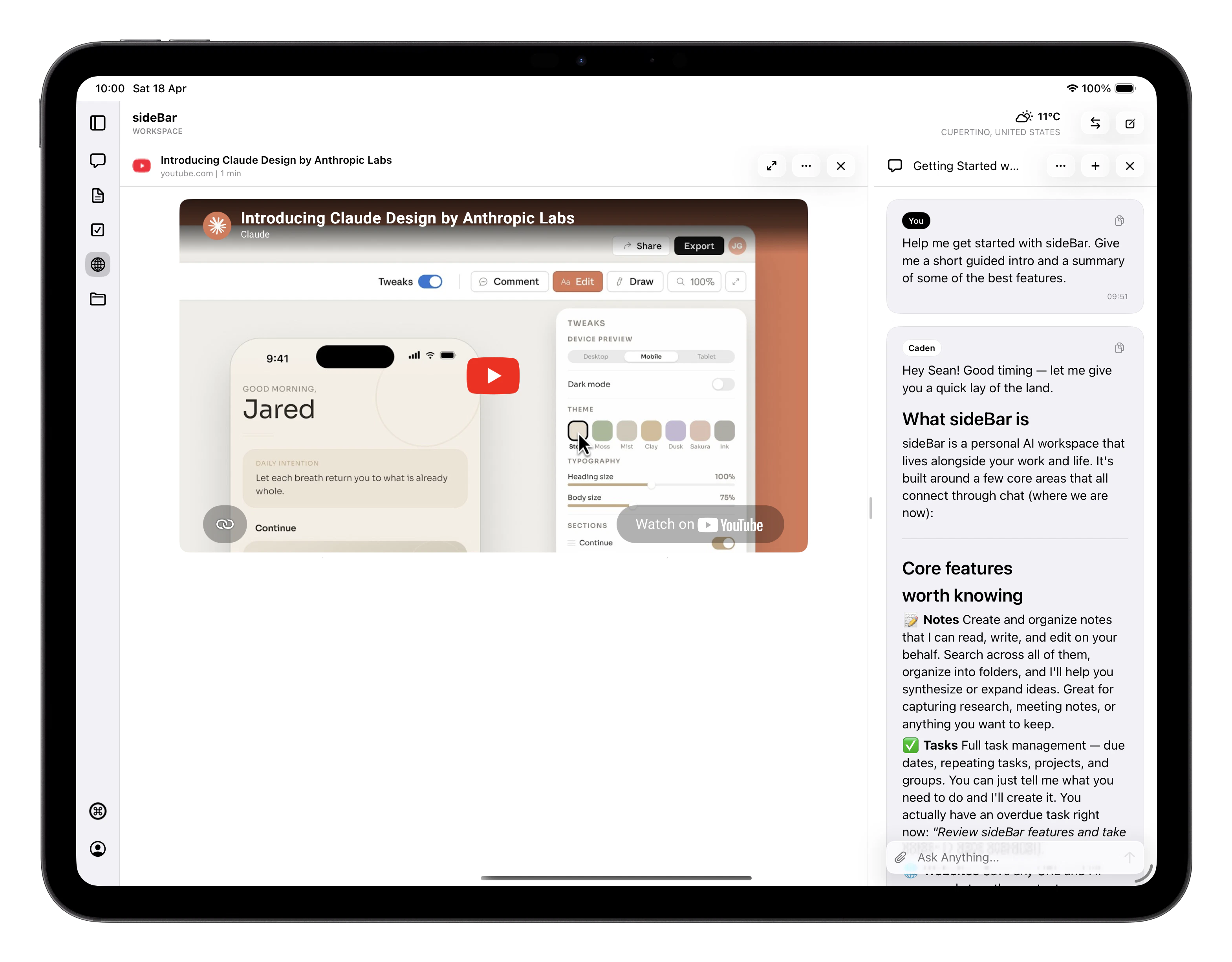 Saving a YouTube URL triggers automatic transcript extraction. The status
progresses through three stages, **queued**, **processing**, then **ready**.
Once ready, the transcript is stored alongside the video's title and metadata
and is available to sideBar for summarising, quoting, or answering
questions about the video.
If extraction fails, the page is still saved and you'll see an error status in
the transcript field.
## Managing Your Web Pages
* **Pin** important pages to keep them at the top of your list.
* **Archive** pages you're finished with. Archived pages aren't deleted, you
can always find them again.
* **Rename** any page by tapping its title.
* **Delete** a page to remove it permanently.
* **Search** across your saved pages by title, domain, or page content. A
useful way to find something when you can't remember where you saved it.
You can also swipe right on any page to archive or unarchive it, or swipe left
to delete it.
## Reading a Saved Page
Open any saved page to see its full content. Tap the page title to open the
original URL in your default browser. Text is selectable if you want to copy
a passage. On iPad, closing a page also exits the expanded reading view and
returns you to the normal split layout.
Saved pages stay available offline on the devices that have already cached
them. Archived pages follow the same rule. If a page has never been cached on
the current device, sideBar tells you it is not available offline yet.
## Working with sideBar on a Page
With a page open, sideBar can see the full content and work with you on it.
Ask it to summarise the article, explain a concept, pull out key points, draft
notes, or find related information. See [Chat](/manual/chat) for more on how
sideBar uses what you have open.
## Export and Sharing
From any saved page you can:
* **Export as markdown**: saves a `.md` file you can open in any text editor.
* **Copy the title**, **URL**, or **full markdown content** with a single tap,
handy for pasting into a note, message, or document.
## Keyboard Shortcuts
| Shortcut | Action |
| ----------------- | -------------------- |
| Cmd+Option+P | Pin or unpin |
| Cmd+Option+A | Archive or unarchive |
| Cmd+Option+Delete | Delete |
| Cmd+Shift+Return | Open in browser |
| Esc | Close page |
Saving a YouTube URL triggers automatic transcript extraction. The status
progresses through three stages, **queued**, **processing**, then **ready**.
Once ready, the transcript is stored alongside the video's title and metadata
and is available to sideBar for summarising, quoting, or answering
questions about the video.
If extraction fails, the page is still saved and you'll see an error status in
the transcript field.
## Managing Your Web Pages
* **Pin** important pages to keep them at the top of your list.
* **Archive** pages you're finished with. Archived pages aren't deleted, you
can always find them again.
* **Rename** any page by tapping its title.
* **Delete** a page to remove it permanently.
* **Search** across your saved pages by title, domain, or page content. A
useful way to find something when you can't remember where you saved it.
You can also swipe right on any page to archive or unarchive it, or swipe left
to delete it.
## Reading a Saved Page
Open any saved page to see its full content. Tap the page title to open the
original URL in your default browser. Text is selectable if you want to copy
a passage. On iPad, closing a page also exits the expanded reading view and
returns you to the normal split layout.
Saved pages stay available offline on the devices that have already cached
them. Archived pages follow the same rule. If a page has never been cached on
the current device, sideBar tells you it is not available offline yet.
## Working with sideBar on a Page
With a page open, sideBar can see the full content and work with you on it.
Ask it to summarise the article, explain a concept, pull out key points, draft
notes, or find related information. See [Chat](/manual/chat) for more on how
sideBar uses what you have open.
## Export and Sharing
From any saved page you can:
* **Export as markdown**: saves a `.md` file you can open in any text editor.
* **Copy the title**, **URL**, or **full markdown content** with a single tap,
handy for pasting into a note, message, or document.
## Keyboard Shortcuts
| Shortcut | Action |
| ----------------- | -------------------- |
| Cmd+Option+P | Pin or unpin |
| Cmd+Option+A | Archive or unarchive |
| Cmd+Option+Delete | Delete |
| Cmd+Shift+Return | Open in browser |
| Esc | Close page |