> ## Documentation Index
> Fetch the complete documentation index at: https://docs.trysidebar.ai/llms.txt
> Use this file to discover all available pages before exploring further.
# Tasks
{/* TODO: alt text: replace with a rich, specific description of what's shown (for screen readers and AI crawlers) */}
 ## Smart Lists
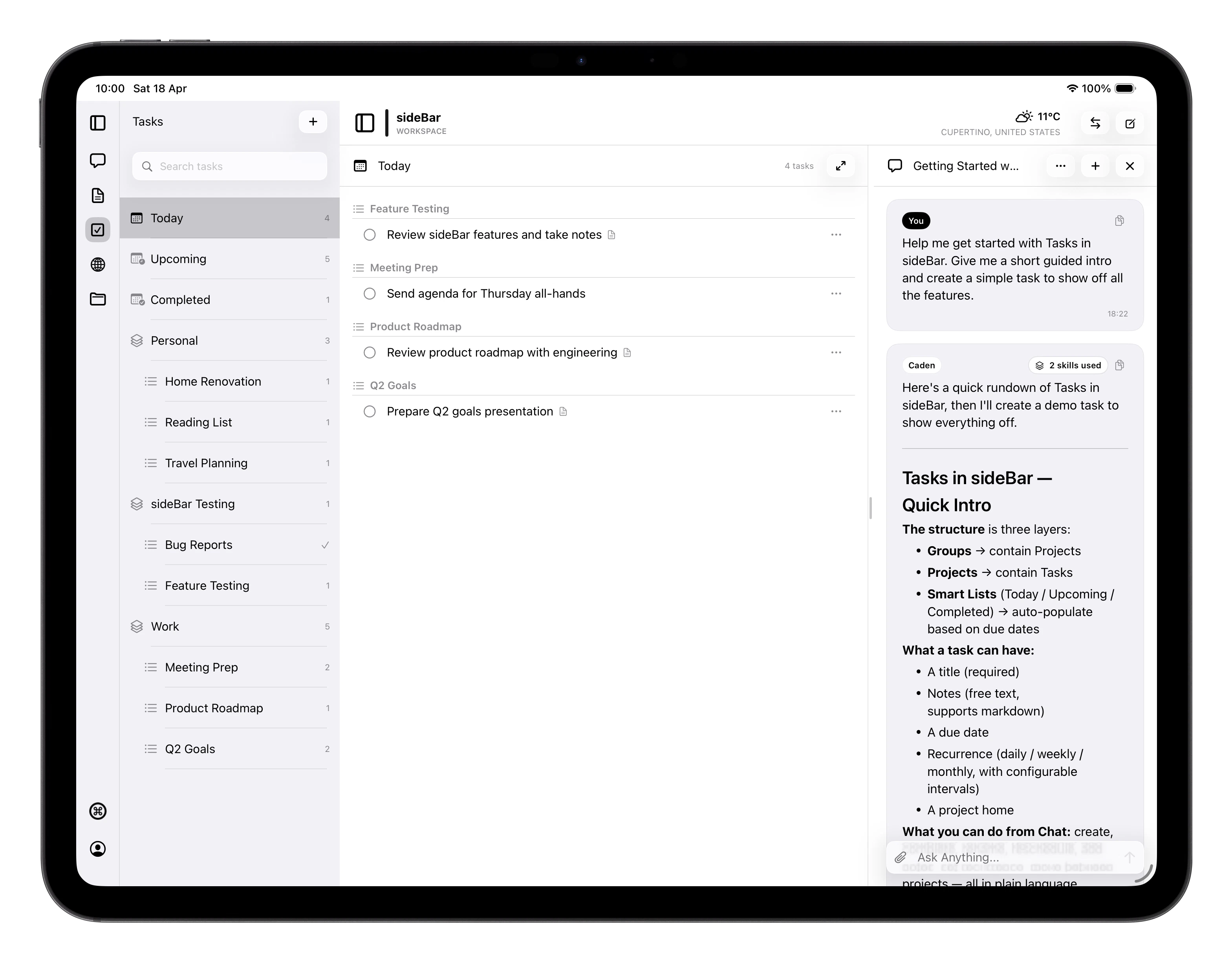
sideBar gives you three built-in smart lists that update automatically based on
your tasks.
* **Today**: tasks due today.
* **Upcoming**: tasks with a future due date, sorted chronologically.
* **Completed**: tasks you've finished.
Each smart list displays a count that refreshes as you add, complete, or modify
tasks.
## Opening Today Automatically
If you have incomplete tasks due today, sideBar opens the Today list the first
time you launch the app on that device each day. Later launches on the same day
return to the workspace you were using before.
## Groups and Projects
For more structure, you can create **Projects** which are individual task lists.
When you have several related projects, you can gather them inside a **Group** to
keep everything well organised. Swipe right on any project or group to rename
it, or swipe left to delete it.
## Creating a Task
Tap the **+** button from any task view. The new task sheet includes:
* **Title** (required)
* **Notes** (optional: anything extra you want to remember)
* **Due date** (optional)
* **List**: choose which project or smart list the task belongs to; defaults
to Today
Tap **Save** to add it. If you are offline, the task is still added
immediately on that device and syncs automatically when you reconnect.
## Task Properties and Actions
Once a task is saved, you can:
* **Complete or uncomplete** it by tapping the circle next to the title.
* **Rename** it by tapping into the title field.
* **Add or edit notes**: notes save automatically as you type.
* **Set or clear a due date** using the date picker.
* **Move the task** to a different project or smart list.
* **Set recurrence**: choose daily, weekly, or monthly, configure the
interval (every N days, weeks, or months), and set a start date. sideBar
tracks when the next instance is due and surfaces it in the right smart list
automatically.
* **Delete** the task. You'll be asked to confirm before it's removed.
## Search
Tap the search field and start typing. Results filter as you type, matching
against all your tasks in the app.
## Widget and Sync
Your tasks that are due today appear in sideBar's home screen widget on iPhone,
iPad, and Mac so you can see what's on your plate without opening the app. All
changes sync across your devices, and offline changes replay automatically once
the device that made them reconnects.
See [Widgets & Extensions](/manual/extensions) for how to add the widget to
your home screen or lock screen.
## Keyboard Shortcuts
| Shortcut | Action |
| ---------------- | ------------------------------------ |
| Return | Complete or uncomplete selected task |
| Cmd+Shift+N | Edit task notes |
| Cmd+Shift+M | Move task |
| Cmd+D | Set due date |
| Cmd+Shift+R | Edit repeat |
| Cmd+Shift+Delete | Delete task |
## Smart Lists
sideBar gives you three built-in smart lists that update automatically based on
your tasks.
* **Today**: tasks due today.
* **Upcoming**: tasks with a future due date, sorted chronologically.
* **Completed**: tasks you've finished.
Each smart list displays a count that refreshes as you add, complete, or modify
tasks.
## Opening Today Automatically
If you have incomplete tasks due today, sideBar opens the Today list the first
time you launch the app on that device each day. Later launches on the same day
return to the workspace you were using before.
## Groups and Projects
For more structure, you can create **Projects** which are individual task lists.
When you have several related projects, you can gather them inside a **Group** to
keep everything well organised. Swipe right on any project or group to rename
it, or swipe left to delete it.
## Creating a Task
Tap the **+** button from any task view. The new task sheet includes:
* **Title** (required)
* **Notes** (optional: anything extra you want to remember)
* **Due date** (optional)
* **List**: choose which project or smart list the task belongs to; defaults
to Today
Tap **Save** to add it. If you are offline, the task is still added
immediately on that device and syncs automatically when you reconnect.
## Task Properties and Actions
Once a task is saved, you can:
* **Complete or uncomplete** it by tapping the circle next to the title.
* **Rename** it by tapping into the title field.
* **Add or edit notes**: notes save automatically as you type.
* **Set or clear a due date** using the date picker.
* **Move the task** to a different project or smart list.
* **Set recurrence**: choose daily, weekly, or monthly, configure the
interval (every N days, weeks, or months), and set a start date. sideBar
tracks when the next instance is due and surfaces it in the right smart list
automatically.
* **Delete** the task. You'll be asked to confirm before it's removed.
## Search
Tap the search field and start typing. Results filter as you type, matching
against all your tasks in the app.
## Widget and Sync
Your tasks that are due today appear in sideBar's home screen widget on iPhone,
iPad, and Mac so you can see what's on your plate without opening the app. All
changes sync across your devices, and offline changes replay automatically once
the device that made them reconnects.
See [Widgets & Extensions](/manual/extensions) for how to add the widget to
your home screen or lock screen.
## Keyboard Shortcuts
| Shortcut | Action |
| ---------------- | ------------------------------------ |
| Return | Complete or uncomplete selected task |
| Cmd+Shift+N | Edit task notes |
| Cmd+Shift+M | Move task |
| Cmd+D | Set due date |
| Cmd+Shift+R | Edit repeat |
| Cmd+Shift+Delete | Delete task |