> ## Documentation Index
> Fetch the complete documentation index at: https://docs.trysidebar.ai/llms.txt
> Use this file to discover all available pages before exploring further.
# Skills
{/* TODO: alt text — replace with a rich, specific description of what's shown (for screen readers and AI crawlers) */}
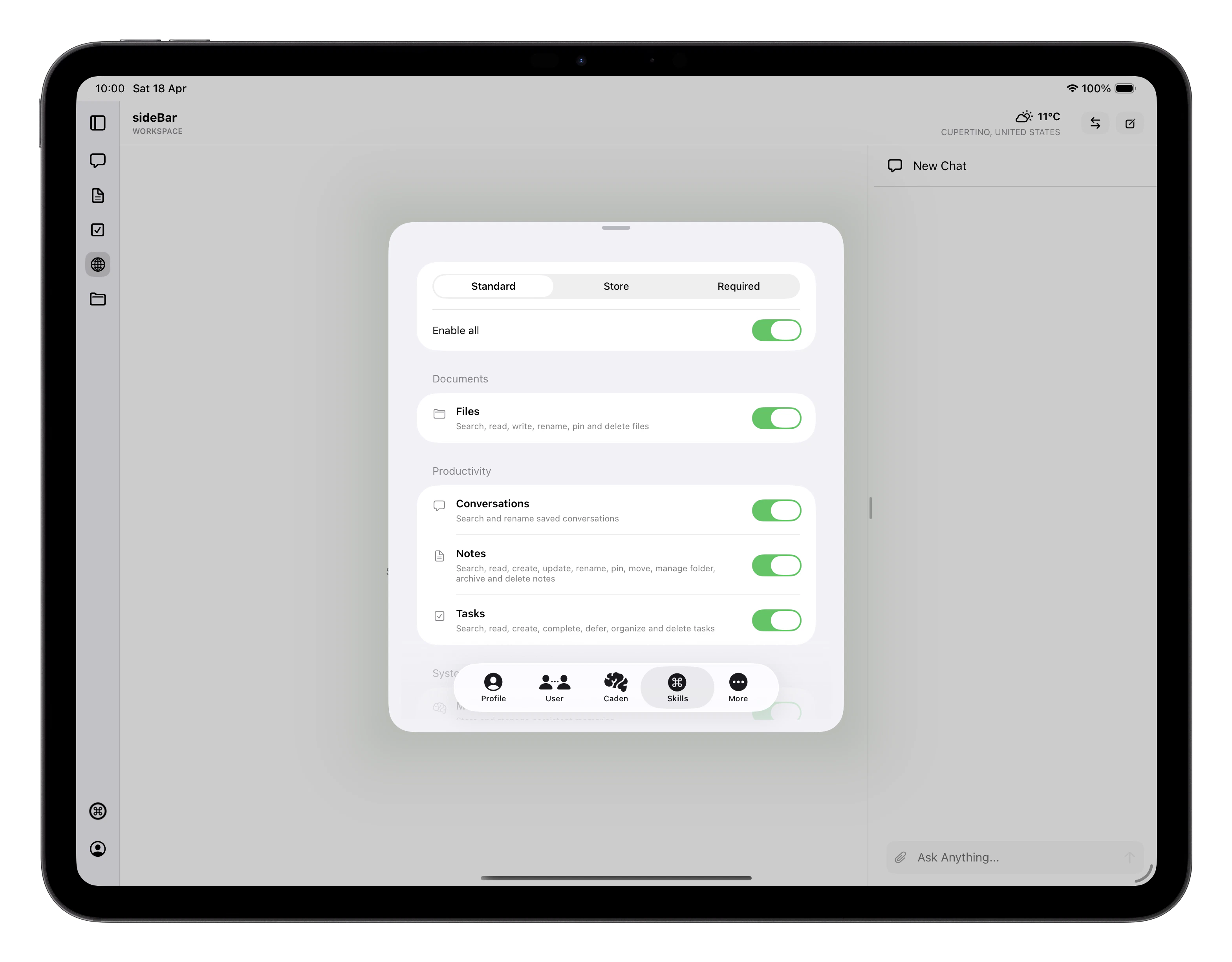 Skills are modular capabilities that extend what sideBar can do. Think of
them as plug-ins: each skill gives sideBar access to a specific ability or
external service. sideBar selects and uses relevant skills automatically as
you chat. You don't need to invoke them by name or switch modes. When a
skill is running, you'll see the skill pill appear inline in the
[conversation](/manual/chat#skills-in-action) so you can follow along in
real time.
## Skill Types
Settings organises skills into two groups:
* **Included**: skills that come with sideBar. Some are optional and can be
turned on or off. Core skills are locked on because sideBar depends on them
to function.
* **Store**: additional skills you choose to install from the
[Skills Store](/manual/skills-store). Some are ready to use immediately;
others require an API key from an external service, which you provide
during installation.
## Skill States
Included skills have a toggle: **enabled** means sideBar can use the skill,
**disabled** means it's installed but inactive until you turn it back on.
Locked included skills are always active and cannot be disabled.
Store skills can also show as **unavailable**, this means the skill is
installed but can't run right now, either because a required API key is
missing or the skill requires a plan upgrade. sideBar will tell you what's
needed.
Skills marked **Beta** are early access. They work, but their behaviour may
change in a future update.
## Mixing Skills
Skills are most powerful when they work together. sideBar can chain multiple
skills in a single conversation turn without you needing to think about which
ones are involved. A few examples of what this looks like in practice:
* **Research and capture**: "Search for the latest news on X and save a
summary as a note" uses Web Search to find results and Notes to write
them up.
* **Plan from content**: "Read the article I saved yesterday and create
tasks for each action item" uses Websites to pull in the page and Tasks
to capture the actions.
* **Cross-reference**: "What tasks do I have this week, and have I saved
anything relevant to them?" uses Tasks and Websites together to give you
a joined-up view.
* **Capture and follow up**: "Save this URL, give me a one-paragraph
summary, and add a task to read it properly tonight" uses Websites,
Notes, and Tasks in one go.
The more skills you have enabled, the more sideBar can do in a single
request. If a skill you expect to be used is not running, check that it is
enabled in [Settings](/manual/settings) → **Skills**.
## Managing Skills
Go to [Settings](/manual/settings) → **Skills** to manage what's active.
Use the filter at the top to switch between **Included** and **Store**.
Included skills are grouped by area, with locked core skills shown at the
bottom of each section. You can enable or disable optional included skills.
Installed Store skills appear in the Store view, where you can enable,
disable, update their API key, or uninstall them.
To browse and install new Store skills, go to the
[Skills Store](/manual/skills-store).
Skills are modular capabilities that extend what sideBar can do. Think of
them as plug-ins: each skill gives sideBar access to a specific ability or
external service. sideBar selects and uses relevant skills automatically as
you chat. You don't need to invoke them by name or switch modes. When a
skill is running, you'll see the skill pill appear inline in the
[conversation](/manual/chat#skills-in-action) so you can follow along in
real time.
## Skill Types
Settings organises skills into two groups:
* **Included**: skills that come with sideBar. Some are optional and can be
turned on or off. Core skills are locked on because sideBar depends on them
to function.
* **Store**: additional skills you choose to install from the
[Skills Store](/manual/skills-store). Some are ready to use immediately;
others require an API key from an external service, which you provide
during installation.
## Skill States
Included skills have a toggle: **enabled** means sideBar can use the skill,
**disabled** means it's installed but inactive until you turn it back on.
Locked included skills are always active and cannot be disabled.
Store skills can also show as **unavailable**, this means the skill is
installed but can't run right now, either because a required API key is
missing or the skill requires a plan upgrade. sideBar will tell you what's
needed.
Skills marked **Beta** are early access. They work, but their behaviour may
change in a future update.
## Mixing Skills
Skills are most powerful when they work together. sideBar can chain multiple
skills in a single conversation turn without you needing to think about which
ones are involved. A few examples of what this looks like in practice:
* **Research and capture**: "Search for the latest news on X and save a
summary as a note" uses Web Search to find results and Notes to write
them up.
* **Plan from content**: "Read the article I saved yesterday and create
tasks for each action item" uses Websites to pull in the page and Tasks
to capture the actions.
* **Cross-reference**: "What tasks do I have this week, and have I saved
anything relevant to them?" uses Tasks and Websites together to give you
a joined-up view.
* **Capture and follow up**: "Save this URL, give me a one-paragraph
summary, and add a task to read it properly tonight" uses Websites,
Notes, and Tasks in one go.
The more skills you have enabled, the more sideBar can do in a single
request. If a skill you expect to be used is not running, check that it is
enabled in [Settings](/manual/settings) → **Skills**.
## Managing Skills
Go to [Settings](/manual/settings) → **Skills** to manage what's active.
Use the filter at the top to switch between **Included** and **Store**.
Included skills are grouped by area, with locked core skills shown at the
bottom of each section. You can enable or disable optional included skills.
Installed Store skills appear in the Store view, where you can enable,
disable, update their API key, or uninstall them.
To browse and install new Store skills, go to the
[Skills Store](/manual/skills-store).