> ## Documentation Index
> Fetch the complete documentation index at: https://docs.trysidebar.ai/llms.txt
> Use this file to discover all available pages before exploring further.
# Settings
{/* TODO: alt text — replace with a rich, specific description of what's shown (for screen readers and AI crawlers) */}
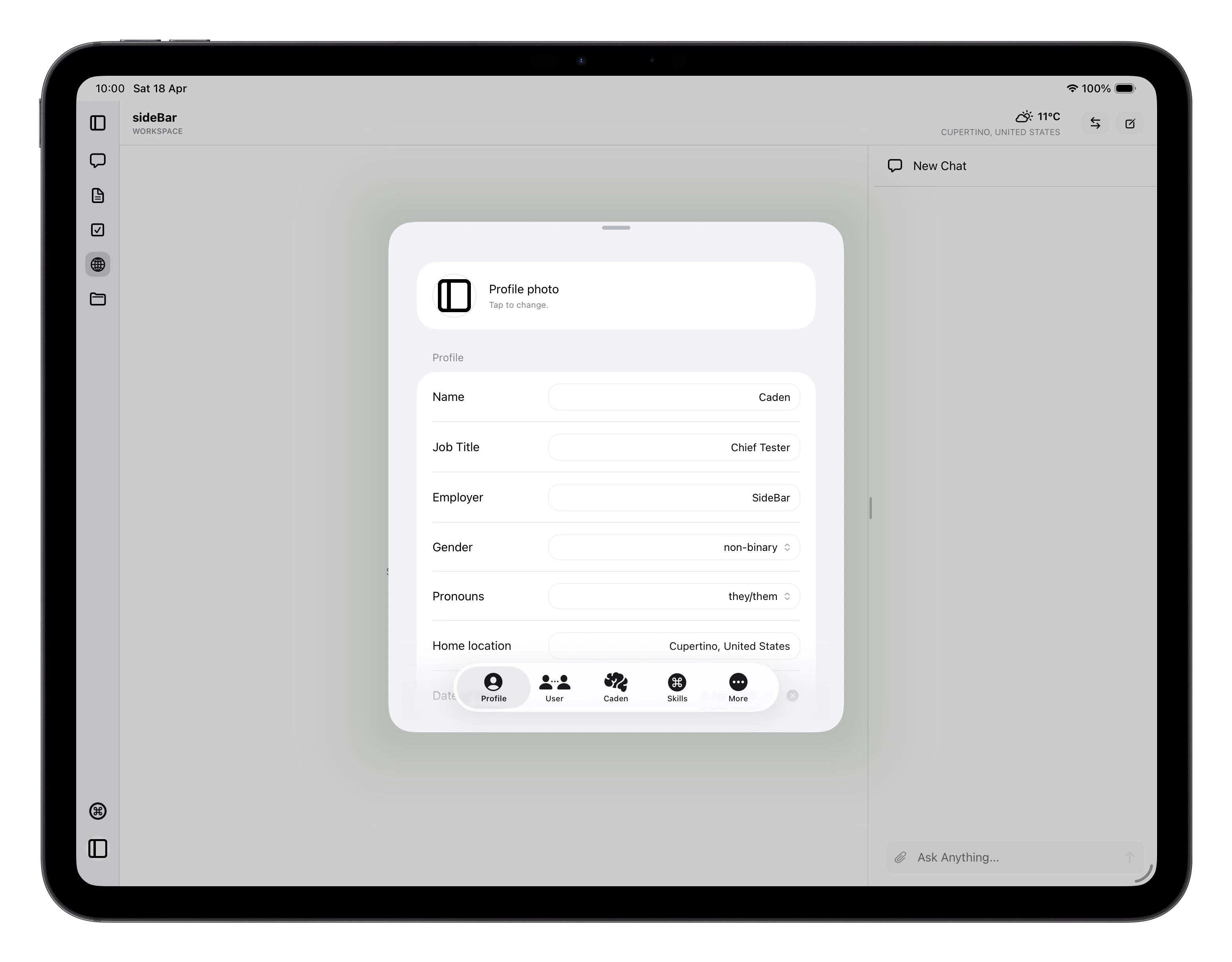 Settings is where you manage your profile, shape how sideBar works with you,
and configure the app. It's divided into six tabs, **Profile**, **User**,
**sideBar**, **Skills**, **Memories**, and **App**, each covering a distinct
area.
Changes apply right away on the current device and sync automatically in the
background. If you are offline, sideBar keeps the change locally and syncs it
when the device reconnects. If a settings sync fails, review it in queued
changes and retry from there.
## Profile
Your profile holds the personal details sideBar can draw on during conversations
when they're relevant. Tap your profile photo to replace it from your camera
roll or photo library.
You can edit the following fields:
* **Name**, **Job title**, **Employer**, **Home location** are free-text fields
* **Gender** and **Pronouns** can be selected from a menu
* **Date of birth** is optional
Changes save automatically as you type. **Sign out** appears at the bottom of
this section.
## User
The User tab controls how sideBar communicates and collaborates with you.
**Communication style**: how sideBar speaks with you. Describe what you want
however you like, from casual and conversational to formal and precise.
**Working relationship**: the dynamic between you. Whether sideBar acts as a
collaborative partner, a coach, a teacher, or something else is yours to define.
## sideBar
This tab is named after your assistant and covers its AI configuration,
identity, and soul.
**AI Provider**: choose which provider powers sideBar: Anthropic, OpenAI, or
Google. Once you've selected a provider, add your API key. Your key is encrypted
before being stored and only the last four characters are shown as
confirmation and the full key is never displayed again.
**Identity**: your assistant's name, tone, values, and boundaries. These are
managed by sideBar itself; you can read them here but only sideBar updates them.
**Soul**: sideBar's purpose, operating principles, adaptation policy, and
success signals. Also managed by sideBar and read-only here.
See [Personality](/manual/personality) for a full explanation of how identity
and soul work and how they evolve over time.
## Skills
Manage which skills are active. Use the filter at the top to switch between
**Included** and **Store**.
Included skills are grouped by area: app skills, assistant skills, and system
skills. Optional included skills have toggles. Locked included skills stay on
because sideBar needs them to function, and they appear at the bottom of each
section.
The **Enable all** toggle turns every optional skill in the current view on or
off at once. Individual rows let you toggle them independently. Tapping a Store
skill opens its detail view, where you can see its full description,
requirements, and any API credentials it needs.
See [Skills](/manual/skills) and [Skills Store](/manual/skills-store) for more
on what skills are and how they work.
## Memories
Memories are reference documents sideBar draws on during every conversation.
As you work together, sideBar creates new memories automatically, capturing
things like your preferences, recurring context, and details about your work,
so it gets better at helping you over time.
You can also add, edit, and search your memories here. sideBar reads relevant
memories automatically; you don't need to mention them in conversation.
## App
**Task reminders**: choose whether sideBar sends one daily reminder for due and
overdue tasks. Reminders only send once a day, they require a reminder time,
and they still respect your Apple system notification settings.
**Assistant reply notifications**: choose whether sideBar alerts you when a
reply is ready while your device is away. These alerts still follow your Apple
system notification settings and Focus modes.
**Text size**: choose System (follows your device's accessibility setting),
Small, Medium, or Large.
**Biometric lock**: require Face ID or Touch ID each time you open sideBar.
This option only appears if your device supports biometric authentication.
**Temperature units**: set whether weather shown to sideBar uses Celsius or
Fahrenheit.
Settings is where you manage your profile, shape how sideBar works with you,
and configure the app. It's divided into six tabs, **Profile**, **User**,
**sideBar**, **Skills**, **Memories**, and **App**, each covering a distinct
area.
Changes apply right away on the current device and sync automatically in the
background. If you are offline, sideBar keeps the change locally and syncs it
when the device reconnects. If a settings sync fails, review it in queued
changes and retry from there.
## Profile
Your profile holds the personal details sideBar can draw on during conversations
when they're relevant. Tap your profile photo to replace it from your camera
roll or photo library.
You can edit the following fields:
* **Name**, **Job title**, **Employer**, **Home location** are free-text fields
* **Gender** and **Pronouns** can be selected from a menu
* **Date of birth** is optional
Changes save automatically as you type. **Sign out** appears at the bottom of
this section.
## User
The User tab controls how sideBar communicates and collaborates with you.
**Communication style**: how sideBar speaks with you. Describe what you want
however you like, from casual and conversational to formal and precise.
**Working relationship**: the dynamic between you. Whether sideBar acts as a
collaborative partner, a coach, a teacher, or something else is yours to define.
## sideBar
This tab is named after your assistant and covers its AI configuration,
identity, and soul.
**AI Provider**: choose which provider powers sideBar: Anthropic, OpenAI, or
Google. Once you've selected a provider, add your API key. Your key is encrypted
before being stored and only the last four characters are shown as
confirmation and the full key is never displayed again.
**Identity**: your assistant's name, tone, values, and boundaries. These are
managed by sideBar itself; you can read them here but only sideBar updates them.
**Soul**: sideBar's purpose, operating principles, adaptation policy, and
success signals. Also managed by sideBar and read-only here.
See [Personality](/manual/personality) for a full explanation of how identity
and soul work and how they evolve over time.
## Skills
Manage which skills are active. Use the filter at the top to switch between
**Included** and **Store**.
Included skills are grouped by area: app skills, assistant skills, and system
skills. Optional included skills have toggles. Locked included skills stay on
because sideBar needs them to function, and they appear at the bottom of each
section.
The **Enable all** toggle turns every optional skill in the current view on or
off at once. Individual rows let you toggle them independently. Tapping a Store
skill opens its detail view, where you can see its full description,
requirements, and any API credentials it needs.
See [Skills](/manual/skills) and [Skills Store](/manual/skills-store) for more
on what skills are and how they work.
## Memories
Memories are reference documents sideBar draws on during every conversation.
As you work together, sideBar creates new memories automatically, capturing
things like your preferences, recurring context, and details about your work,
so it gets better at helping you over time.
You can also add, edit, and search your memories here. sideBar reads relevant
memories automatically; you don't need to mention them in conversation.
## App
**Task reminders**: choose whether sideBar sends one daily reminder for due and
overdue tasks. Reminders only send once a day, they require a reminder time,
and they still respect your Apple system notification settings.
**Assistant reply notifications**: choose whether sideBar alerts you when a
reply is ready while your device is away. These alerts still follow your Apple
system notification settings and Focus modes.
**Text size**: choose System (follows your device's accessibility setting),
Small, Medium, or Large.
**Biometric lock**: require Face ID or Touch ID each time you open sideBar.
This option only appears if your device supports biometric authentication.
**Temperature units**: set whether weather shown to sideBar uses Celsius or
Fahrenheit.