> ## Documentation Index
> Fetch the complete documentation index at: https://docs.trysidebar.ai/llms.txt
> Use this file to discover all available pages before exploring further.
# Notes
{/* TODO: alt text — replace with a rich, specific description of what's shown (for screen readers and AI crawlers) */}
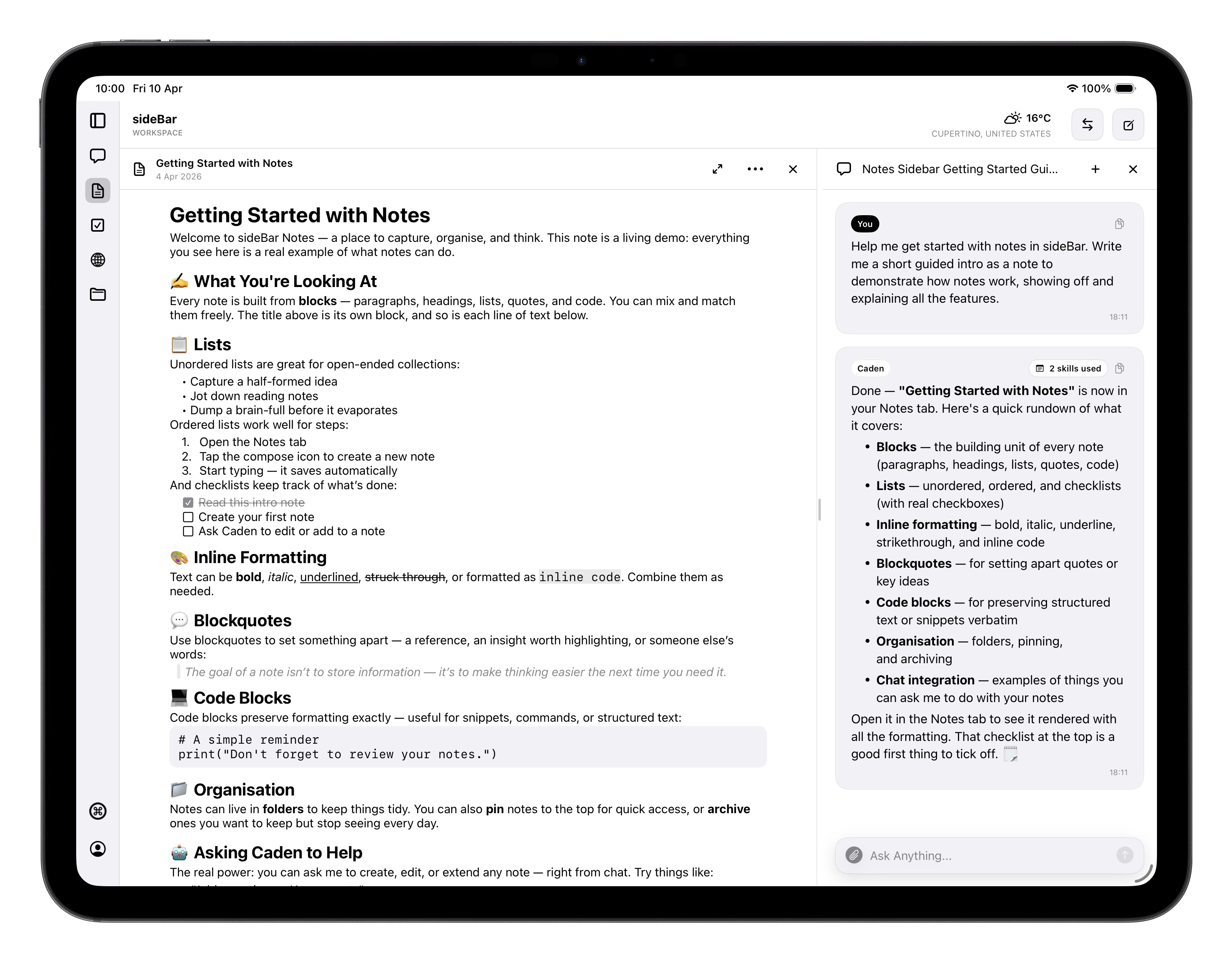 Notes gives you a full writing environment inside sideBar, organised in folders
and always accessible to sideBar when you need it.
## Organisation
Notes live in a hierarchical folder structure. You can create folders inside
folders to whatever depth makes sense for how you work. Individual notes sit
inside those folders.
**Pinning** keeps a note at the top of the notes view. Useful for anything you
reach for constantly. Notes you don't need day-to-day can be **archived**
instead of deleted; the folder view shows an archived count so nothing is
hidden from you.
## Creating and Editing
Create a new note from the menu. A note's title comes from its first line, so
whatever you write first becomes the title, no separate naming step required.
Changes save automatically as you write; a **Saved** indicator appears briefly
to confirm each save. The editor remembers your cursor position, so when you
come back to a note it's exactly where you left off. On iPad, closing a note
also exits the expanded note view and returns you to the normal split layout.
Notes are local-first. If you create or edit a note while offline, the change is
applied immediately on that device and syncs automatically when you reconnect.
## Formatting
Notes use rich text. On iPhone and iPad, tap the `textformat` button in the
editor controls to open the formatting popover. On macOS, click the floating
`textformat` button at the top right of the editor. The popover lets you change
the current line's text style or apply inline formatting to the current
selection.
Available formatting includes:
* **Text styles**: Body, Title, Heading, Subhead
* **Inline formatting**: Bold, Italic, Underline, Strikethrough, Inline Code
* **Lists**: type `- ` or `* ` to start a bulleted list, or `1. ` to start a numbered list
* **Checklists**: type `[] ` to start a checklist item
The text-style row is visual rather than text-only, so each style is shown with
its own note typography instead of a plain menu label.
On macOS, the same note formatting actions are also available as top-level
items in the **Format** menu instead of nested submenus.
To start a list while typing, begin a new paragraph and type one of the list
triggers followed by a space:
* `- ` or `* ` for a bulleted list
* `1. ` for a numbered list
* `[] ` for a checklist item
These triggers only work at the start of a paragraph.
Checklist items can be toggled directly in read mode by tapping or clicking the
checkbox. Checked items stay in place and automatically gain strikethrough
styling until you uncheck them.
Pressing Return after a **Title**, **Heading**, or **Subhead** starts a new
**Body** line. **Body** lines continue as body text when you press Return. Code
blocks stay multiline, and pressing Return twice on an empty trailing code
block line exits back to **Body** text. In lists and checklists, Return creates
the next item, and pressing Return on an empty trailing item exits back to
**Body** text.
## Note Actions
From the context menu (long-press a note in the list) or the toolbar menu when
viewing a note, you can:
* **Pin / Unpin**: keeps the note at the top of the notes view
* **Move**: reassign the note to a different folder
* **Copy Text**: copies the note content to your clipboard
* **Share Text**: opens the system share sheet with the note content
* **Download**: exports the note as a plain text file
* **Archive / Unarchive**: moves the note out of your main view without
deleting it
* **Delete**: permanently removes the note after a confirmation prompt
Swipe left on any note to delete it directly. Folders support **Rename** (swipe
right or context menu) and **Delete** (swipe left or context menu).
**Search** is available across all your notes at once. Results update as you
type, so you don't need to submit a query to start seeing matches.
Archived notes you have already loaded on a device stay available there
offline. If an archived note was never cached on the current device, sideBar
lets you know it is not available offline yet.
## Scratchpad
The Scratchpad is a special note that's always one tap away, from any view in
the app. It's designed for quick captures, the kind of thing you want to get
down before you lose it. It auto-saves with a short delay so you can type and
move on without thinking about it.
## Widgets
Pinned notes appear in sideBar's Pinned Notes home screen widget, giving you
quick access without opening the app. If you have not pinned any notes yet,
the widget shows your most recent notes so it never stays empty just because
nothing is pinned. See [Widgets & Extensions](/manual/extensions) to set it up.
## Keyboard Shortcuts
| Shortcut | Action |
| ---------------- | ------------------------ |
| Cmd+Shift+N | New folder |
| Cmd+Shift+P | Pin or unpin |
| Cmd+Shift+A | Archive or unarchive |
| Cmd+Shift+Delete | Delete |
| Esc | Close note |
| Cmd+Shift+T | Title style (macOS) |
| Cmd+Shift+H | Heading style (macOS) |
| Cmd+Shift+J | Subheading style (macOS) |
| Cmd+Shift+B | Body style (macOS) |
| Cmd+B | Bold (macOS) |
| Cmd+I | Italic (macOS) |
| Cmd+U | Underline (macOS) |
| Cmd+Shift+X | Strikethrough (macOS) |
Notes gives you a full writing environment inside sideBar, organised in folders
and always accessible to sideBar when you need it.
## Organisation
Notes live in a hierarchical folder structure. You can create folders inside
folders to whatever depth makes sense for how you work. Individual notes sit
inside those folders.
**Pinning** keeps a note at the top of the notes view. Useful for anything you
reach for constantly. Notes you don't need day-to-day can be **archived**
instead of deleted; the folder view shows an archived count so nothing is
hidden from you.
## Creating and Editing
Create a new note from the menu. A note's title comes from its first line, so
whatever you write first becomes the title, no separate naming step required.
Changes save automatically as you write; a **Saved** indicator appears briefly
to confirm each save. The editor remembers your cursor position, so when you
come back to a note it's exactly where you left off. On iPad, closing a note
also exits the expanded note view and returns you to the normal split layout.
Notes are local-first. If you create or edit a note while offline, the change is
applied immediately on that device and syncs automatically when you reconnect.
## Formatting
Notes use rich text. On iPhone and iPad, tap the `textformat` button in the
editor controls to open the formatting popover. On macOS, click the floating
`textformat` button at the top right of the editor. The popover lets you change
the current line's text style or apply inline formatting to the current
selection.
Available formatting includes:
* **Text styles**: Body, Title, Heading, Subhead
* **Inline formatting**: Bold, Italic, Underline, Strikethrough, Inline Code
* **Lists**: type `- ` or `* ` to start a bulleted list, or `1. ` to start a numbered list
* **Checklists**: type `[] ` to start a checklist item
The text-style row is visual rather than text-only, so each style is shown with
its own note typography instead of a plain menu label.
On macOS, the same note formatting actions are also available as top-level
items in the **Format** menu instead of nested submenus.
To start a list while typing, begin a new paragraph and type one of the list
triggers followed by a space:
* `- ` or `* ` for a bulleted list
* `1. ` for a numbered list
* `[] ` for a checklist item
These triggers only work at the start of a paragraph.
Checklist items can be toggled directly in read mode by tapping or clicking the
checkbox. Checked items stay in place and automatically gain strikethrough
styling until you uncheck them.
Pressing Return after a **Title**, **Heading**, or **Subhead** starts a new
**Body** line. **Body** lines continue as body text when you press Return. Code
blocks stay multiline, and pressing Return twice on an empty trailing code
block line exits back to **Body** text. In lists and checklists, Return creates
the next item, and pressing Return on an empty trailing item exits back to
**Body** text.
## Note Actions
From the context menu (long-press a note in the list) or the toolbar menu when
viewing a note, you can:
* **Pin / Unpin**: keeps the note at the top of the notes view
* **Move**: reassign the note to a different folder
* **Copy Text**: copies the note content to your clipboard
* **Share Text**: opens the system share sheet with the note content
* **Download**: exports the note as a plain text file
* **Archive / Unarchive**: moves the note out of your main view without
deleting it
* **Delete**: permanently removes the note after a confirmation prompt
Swipe left on any note to delete it directly. Folders support **Rename** (swipe
right or context menu) and **Delete** (swipe left or context menu).
**Search** is available across all your notes at once. Results update as you
type, so you don't need to submit a query to start seeing matches.
Archived notes you have already loaded on a device stay available there
offline. If an archived note was never cached on the current device, sideBar
lets you know it is not available offline yet.
## Scratchpad
The Scratchpad is a special note that's always one tap away, from any view in
the app. It's designed for quick captures, the kind of thing you want to get
down before you lose it. It auto-saves with a short delay so you can type and
move on without thinking about it.
## Widgets
Pinned notes appear in sideBar's Pinned Notes home screen widget, giving you
quick access without opening the app. If you have not pinned any notes yet,
the widget shows your most recent notes so it never stays empty just because
nothing is pinned. See [Widgets & Extensions](/manual/extensions) to set it up.
## Keyboard Shortcuts
| Shortcut | Action |
| ---------------- | ------------------------ |
| Cmd+Shift+N | New folder |
| Cmd+Shift+P | Pin or unpin |
| Cmd+Shift+A | Archive or unarchive |
| Cmd+Shift+Delete | Delete |
| Esc | Close note |
| Cmd+Shift+T | Title style (macOS) |
| Cmd+Shift+H | Heading style (macOS) |
| Cmd+Shift+J | Subheading style (macOS) |
| Cmd+Shift+B | Body style (macOS) |
| Cmd+B | Bold (macOS) |
| Cmd+I | Italic (macOS) |
| Cmd+U | Underline (macOS) |
| Cmd+Shift+X | Strikethrough (macOS) |