> ## Documentation Index
> Fetch the complete documentation index at: https://docs.trysidebar.ai/llms.txt
> Use this file to discover all available pages before exploring further.
# Getting Started
{/* TODO: alt text — replace with a rich, specific description of what's shown (for screen readers and AI crawlers) */}
 ## Creating an Account
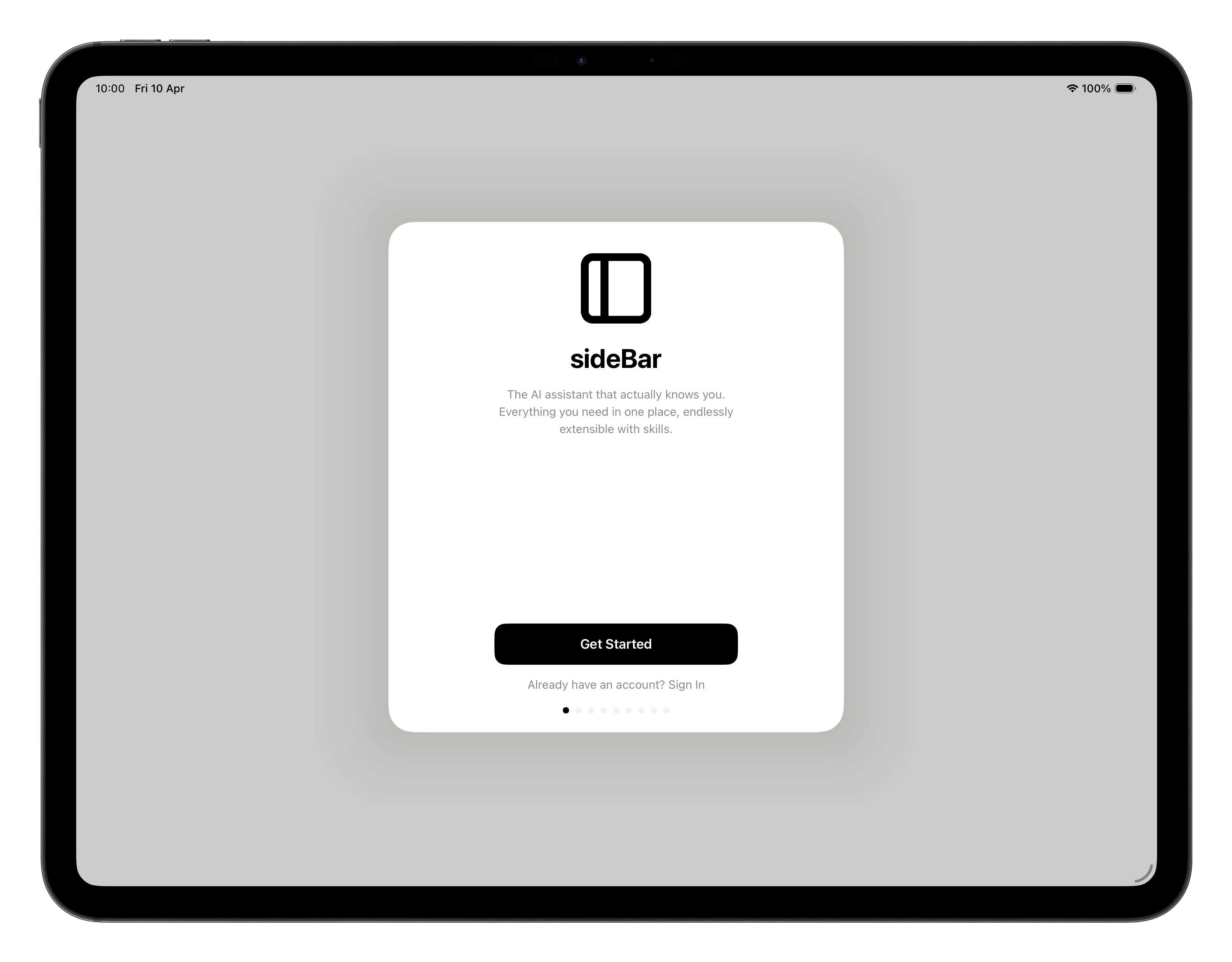
When you open sideBar for the first time, you'll be asked to create an account.
Tap **Create Account**, enter your email address, and follow the verification
link that arrives in your inbox. If you already have an account, tap **Sign In**
and enter your credentials.
## Connecting a Provider
Before you can chat with sideBar, you need to connect an AI provider. sideBar
supports three: **Anthropic**, **OpenAI**, and **Google**. You'll need an API
key from whichever one you choose.
sideBar will walk you through this step automatically when you first sign in.
Choose your provider, paste your API key into the field, and confirm. Once
connected, you're ready to start.
If you don't have an API key yet, see [API Keys](/manual/api-keys) for step-by-step instructions for each provider.
Chatting with sideBar isn't available without one but you can still use it to
take notes, keep track of tasks, save websites to read later and upload files.
## The Onboarding Conversation
Once your chosen AI provider is connected, sideBar starts a short calibration
conversation in Chat before feature discovery begins. This is where sideBar
works out how it should collaborate with you.
Before the first question, sideBar shows a short intro card that explains what
this final setup step is for and why it matters.
The calibration is lightweight and mostly tap-based. sideBar asks:
* **What would you most like help with first?**
* **How would you like it to work with you?**
* **How should it show up?**
From those answers, sideBar sets its initial identity and soul, chooses its own
name, and confirms it with you. The name is chosen to fit the identity and soul
it has already authored for itself. You can accept the name or ask it to try
another one.
When you tap **Hello!**, sideBar sends its first message in Chat, introduces
itself, and points you to the **Explore sideBar** surface at the top of the
conversation. That surface is there to help you discover what sideBar can do,
and you can dismiss it whenever you want.
After that, sideBar moves straight into discovery so you can explore the app
and get to your first real outcome quickly.
If you stop partway through, sideBar resumes from the next missing calibration
step the next time you return to Chat. Provider recovery still shows up in
Chat, while permission follow-up lives in Settings.
Onboarding is only complete after calibration is finished and sideBar has
either helped you reach a real first outcome or you finish the discovery
follow-up after setup.
## Finding Your Way Around
After onboarding, you land in the main app. The navigation bar sits at the
bottom of the screen on iPhone, or in the left rail on iPad, Mac, and in a
web browser. It has six sections:
* **[Chat](/manual/chat)**: where you talk to sideBar and get things done.
* **[Notes](/manual/notes)**: create and organise notes sideBar can read and
reference.
* **[Tasks](/manual/tasks)**: manage to-dos manually or ask sideBar to create
them for you.
* **[Websites](/manual/websites)**: save and browse webpages sideBar can
reference.
* **[Files](/manual/files)**: upload documents you want sideBar to read,
summarize, or work with.
* **[Skills Store](/manual/skills-store)**: browse and install additional
capabilities.
## Starting a Conversation
Tap the text field at the bottom of the Chat screen and type anything you want
to ask or do. You don't need special commands, sideBar understands plain
language. Try asking it to remind you of something, summarise a topic, or help
you draft a note.
sideBar has access to context from your device automatically: your timezone,
current location (if you've granted permission), and local weather. You don't
need to tell it where you are or what time it is if you don't want to.
## Extending sideBar with Skills
sideBar ships with a solid set of built-in capabilities, but the
[Skills Store](/manual/skills-store) lets you go further. Browse and install
additional skills, then manage them from **Settings → Skills**. Once a skill
is enabled, sideBar uses it automatically. You don't need to invoke it by
name.
## Creating an Account
When you open sideBar for the first time, you'll be asked to create an account.
Tap **Create Account**, enter your email address, and follow the verification
link that arrives in your inbox. If you already have an account, tap **Sign In**
and enter your credentials.
## Connecting a Provider
Before you can chat with sideBar, you need to connect an AI provider. sideBar
supports three: **Anthropic**, **OpenAI**, and **Google**. You'll need an API
key from whichever one you choose.
sideBar will walk you through this step automatically when you first sign in.
Choose your provider, paste your API key into the field, and confirm. Once
connected, you're ready to start.
If you don't have an API key yet, see [API Keys](/manual/api-keys) for step-by-step instructions for each provider.
Chatting with sideBar isn't available without one but you can still use it to
take notes, keep track of tasks, save websites to read later and upload files.
## The Onboarding Conversation
Once your chosen AI provider is connected, sideBar starts a short calibration
conversation in Chat before feature discovery begins. This is where sideBar
works out how it should collaborate with you.
Before the first question, sideBar shows a short intro card that explains what
this final setup step is for and why it matters.
The calibration is lightweight and mostly tap-based. sideBar asks:
* **What would you most like help with first?**
* **How would you like it to work with you?**
* **How should it show up?**
From those answers, sideBar sets its initial identity and soul, chooses its own
name, and confirms it with you. The name is chosen to fit the identity and soul
it has already authored for itself. You can accept the name or ask it to try
another one.
When you tap **Hello!**, sideBar sends its first message in Chat, introduces
itself, and points you to the **Explore sideBar** surface at the top of the
conversation. That surface is there to help you discover what sideBar can do,
and you can dismiss it whenever you want.
After that, sideBar moves straight into discovery so you can explore the app
and get to your first real outcome quickly.
If you stop partway through, sideBar resumes from the next missing calibration
step the next time you return to Chat. Provider recovery still shows up in
Chat, while permission follow-up lives in Settings.
Onboarding is only complete after calibration is finished and sideBar has
either helped you reach a real first outcome or you finish the discovery
follow-up after setup.
## Finding Your Way Around
After onboarding, you land in the main app. The navigation bar sits at the
bottom of the screen on iPhone, or in the left rail on iPad, Mac, and in a
web browser. It has six sections:
* **[Chat](/manual/chat)**: where you talk to sideBar and get things done.
* **[Notes](/manual/notes)**: create and organise notes sideBar can read and
reference.
* **[Tasks](/manual/tasks)**: manage to-dos manually or ask sideBar to create
them for you.
* **[Websites](/manual/websites)**: save and browse webpages sideBar can
reference.
* **[Files](/manual/files)**: upload documents you want sideBar to read,
summarize, or work with.
* **[Skills Store](/manual/skills-store)**: browse and install additional
capabilities.
## Starting a Conversation
Tap the text field at the bottom of the Chat screen and type anything you want
to ask or do. You don't need special commands, sideBar understands plain
language. Try asking it to remind you of something, summarise a topic, or help
you draft a note.
sideBar has access to context from your device automatically: your timezone,
current location (if you've granted permission), and local weather. You don't
need to tell it where you are or what time it is if you don't want to.
## Extending sideBar with Skills
sideBar ships with a solid set of built-in capabilities, but the
[Skills Store](/manual/skills-store) lets you go further. Browse and install
additional skills, then manage them from **Settings → Skills**. Once a skill
is enabled, sideBar uses it automatically. You don't need to invoke it by
name.