> ## Documentation Index
> Fetch the complete documentation index at: https://docs.trysidebar.ai/llms.txt
> Use this file to discover all available pages before exploring further.
# Files
{/* TODO: alt text — replace with a rich, specific description of what's shown (for screen readers and AI crawlers) */}
 ## Supported File Types
sideBar accepts a wide range of file formats, organised into folders by type:
* **Documents**: PDFs, Word documents, and plain text files
* **Images**: JPG, PNG, and other common image formats
* **Audio**: audio recordings and other common audio formats
* **Video**: video files
* **Spreadsheets**: Excel workbooks and CSV files
* **Reports**: structured report formats generated by sideBar
* **Presentations**: PowerPoint and similar formats
## Adding Files
Tap the **+** button in the Files tab to open the file picker, then choose a
file from your device. You can also share files directly from other apps using
the sideBar Share extension, see [Widgets & Extensions](/manual/extensions)
to set it up. After you select a file, sideBar begins ingesting it right away.
If you are offline, the import is queued locally and continues when you are
back online.
Ingestion moves through three stages: **uploading**, **processing**, and
**ready**. You can watch the status update in real time on the file card. If
something goes wrong during processing, the card shows an error state with a
**Retry** button, tap it to try again without re-uploading.
## The File List
Each file in your list shows its filename, size, type, and upload date at a
glance. Two organizational tools help keep the list manageable:
* **Pin** files you reach for often, they stay at the top of the list.
* **Archive** files you no longer need active, they move out of the main view.
A count of archived files appears at the bottom of the list so you can
restore them any time.
## Viewing Files
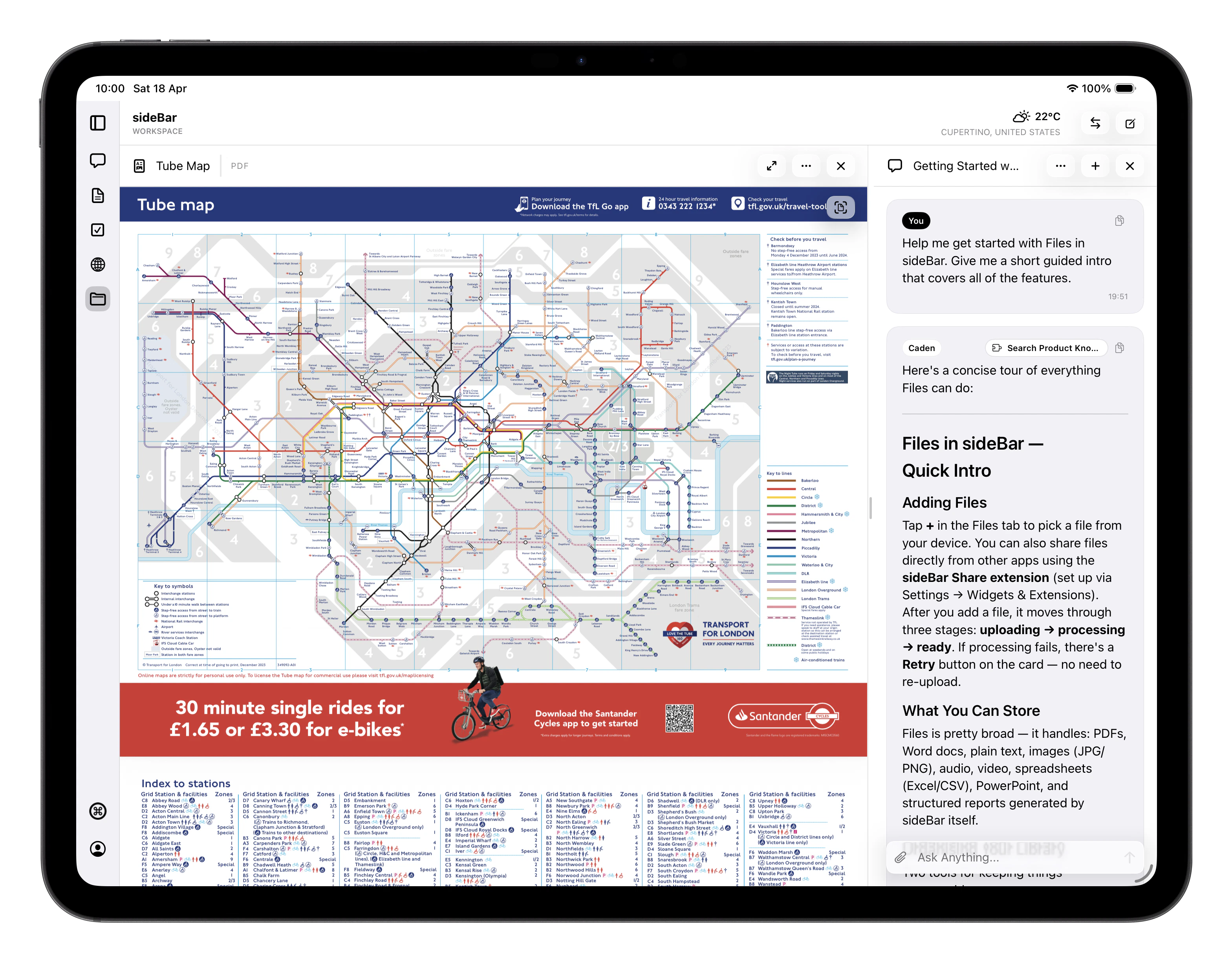
Tap any ready file to open it in the built-in viewer:
* **PDFs**: full-page viewer with page navigation and pinch-to-zoom
* **Spreadsheets**: scrollable grid view with column headers
* **YouTube videos**: in-app player alongside the extracted plain-text transcript
* **Images**: full-screen display
* **Text and Markdown**: rendered preview
Files you have already cached on a device remain available there offline. If a
file record exists locally but its viewable content has not been cached on the
current device yet, sideBar shows that it is not available offline yet.
## Using Files with sideBar
Once a file reaches the **ready** state, its content is indexed and
sideBar can search and reference it during any conversation. You can also
attach a specific file directly to a [chat](/manual/chat) message to upload
it and give sideBar focused context on that file.
## Skill-Generated Files
Some skills save files to your library automatically. For example, the
[Audio Transcription](/skills/store/audio-transcription) skill saves completed
transcripts as markdown files in a **Transcripts** folder, and the YouTube
skills save downloaded audio and transcripts to a **Videos** folder. These
files behave exactly like any file you uploaded manually — they are indexed,
viewable, and available to sideBar in conversation.
## File Actions
Tap the menu on any file card to access these actions:
* **Delete**: permanently removes the file and its index
* **Archive / Restore**: moves the file out of (or back into) the active list
* **Pin / Unpin**: controls whether the file stays at the top of your list
You can also swipe right on any file to pin or unpin it, or swipe left to
delete it.
## Keyboard Shortcuts
| Shortcut | Action |
| ----------------------- | ------------------ |
| Space | Quick Look preview |
| Cmd+Option+Shift+Delete | Delete |
## Supported File Types
sideBar accepts a wide range of file formats, organised into folders by type:
* **Documents**: PDFs, Word documents, and plain text files
* **Images**: JPG, PNG, and other common image formats
* **Audio**: audio recordings and other common audio formats
* **Video**: video files
* **Spreadsheets**: Excel workbooks and CSV files
* **Reports**: structured report formats generated by sideBar
* **Presentations**: PowerPoint and similar formats
## Adding Files
Tap the **+** button in the Files tab to open the file picker, then choose a
file from your device. You can also share files directly from other apps using
the sideBar Share extension, see [Widgets & Extensions](/manual/extensions)
to set it up. After you select a file, sideBar begins ingesting it right away.
If you are offline, the import is queued locally and continues when you are
back online.
Ingestion moves through three stages: **uploading**, **processing**, and
**ready**. You can watch the status update in real time on the file card. If
something goes wrong during processing, the card shows an error state with a
**Retry** button, tap it to try again without re-uploading.
## The File List
Each file in your list shows its filename, size, type, and upload date at a
glance. Two organizational tools help keep the list manageable:
* **Pin** files you reach for often, they stay at the top of the list.
* **Archive** files you no longer need active, they move out of the main view.
A count of archived files appears at the bottom of the list so you can
restore them any time.
## Viewing Files
Tap any ready file to open it in the built-in viewer:
* **PDFs**: full-page viewer with page navigation and pinch-to-zoom
* **Spreadsheets**: scrollable grid view with column headers
* **YouTube videos**: in-app player alongside the extracted plain-text transcript
* **Images**: full-screen display
* **Text and Markdown**: rendered preview
Files you have already cached on a device remain available there offline. If a
file record exists locally but its viewable content has not been cached on the
current device yet, sideBar shows that it is not available offline yet.
## Using Files with sideBar
Once a file reaches the **ready** state, its content is indexed and
sideBar can search and reference it during any conversation. You can also
attach a specific file directly to a [chat](/manual/chat) message to upload
it and give sideBar focused context on that file.
## Skill-Generated Files
Some skills save files to your library automatically. For example, the
[Audio Transcription](/skills/store/audio-transcription) skill saves completed
transcripts as markdown files in a **Transcripts** folder, and the YouTube
skills save downloaded audio and transcripts to a **Videos** folder. These
files behave exactly like any file you uploaded manually — they are indexed,
viewable, and available to sideBar in conversation.
## File Actions
Tap the menu on any file card to access these actions:
* **Delete**: permanently removes the file and its index
* **Archive / Restore**: moves the file out of (or back into) the active list
* **Pin / Unpin**: controls whether the file stays at the top of your list
You can also swipe right on any file to pin or unpin it, or swipe left to
delete it.
## Keyboard Shortcuts
| Shortcut | Action |
| ----------------------- | ------------------ |
| Space | Quick Look preview |
| Cmd+Option+Shift+Delete | Delete |