> ## Documentation Index
> Fetch the complete documentation index at: https://docs.trysidebar.ai/llms.txt
> Use this file to discover all available pages before exploring further.
# Widgets & Extensions
{/* TODO: alt text — replace with a rich, specific description of what's shown (for screen readers and AI crawlers) */}
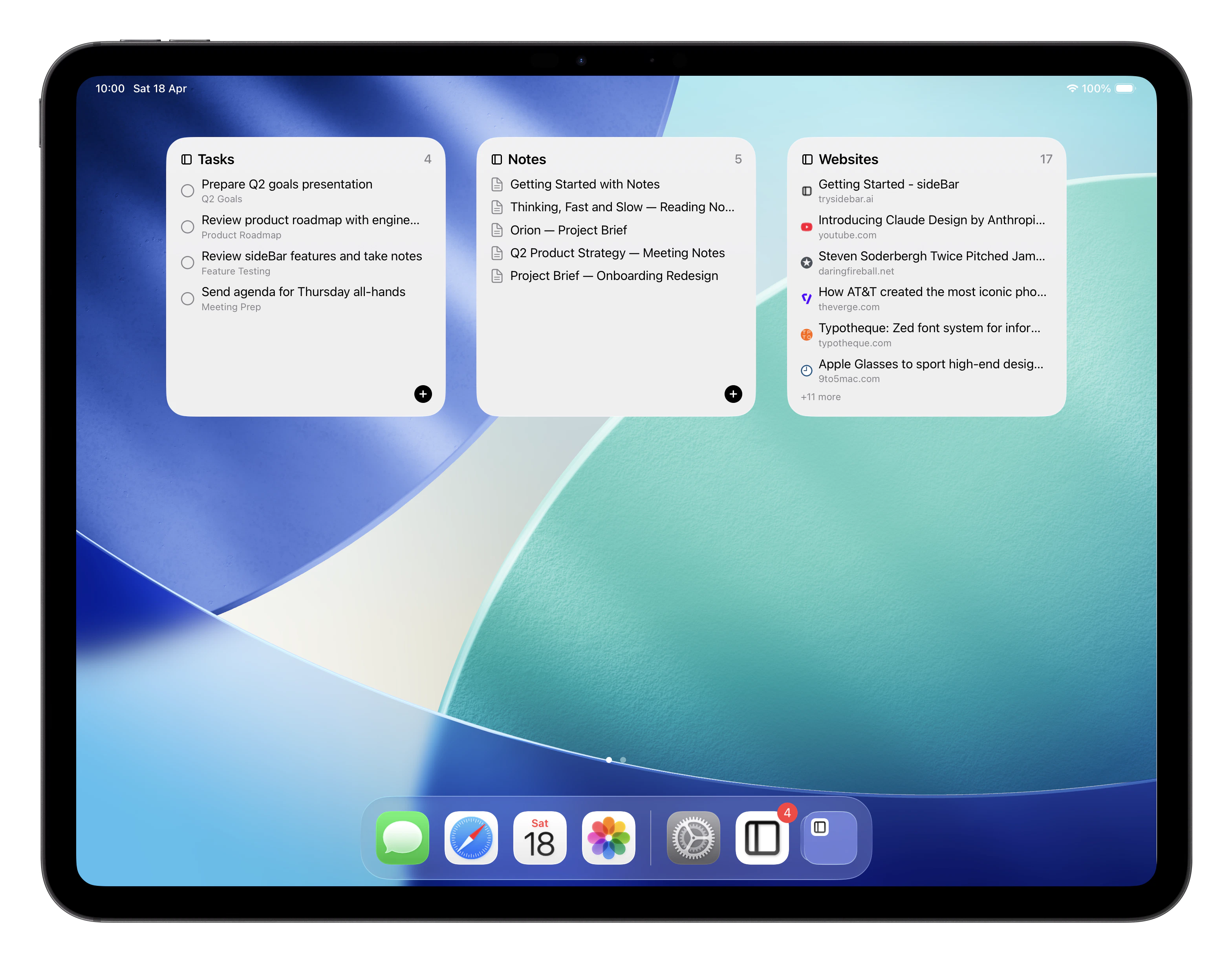 Widgets and extensions bring sideBar outside the app itself and onto your home
screen, lock screen, into Safari, and into the iOS share sheet. Each one is
optional and takes less than a minute to set up.
## Home Screen Widgets
sideBar offers five widget types for your iPhone, iPad, or Mac home screen,
in small, medium, and large sizes:
* **Today's Tasks**: your tasks for today with interactive checkboxes to
complete them. Tapping the add button opens the app to create a new task.
See [Tasks](/manual/tasks) for more on how tasks work.
* **Task Count**: a compact progress ring showing how many tasks you've
completed today.
* **Pinned Notes**: quick links to your pinned notes. If you have not pinned
any notes yet, sideBar shows your most recent notes instead. See
[Notes](/manual/notes) for how to pin a note.
* **Saved Websites**: your saved websites with favicons. Pinned websites appear
first, followed by your most recent saved websites. See
[Websites](/manual/websites) for how to save sites.
* **Pinned Files**: your pinned files with file-type icons. See
[Files](/manual/files) for how to pin a file.
**To add a widget on iPhone or iPad:**
1. Long-press an empty area of your home screen until it enters edit mode.
2. Tap the **+** button in the top corner.
3. Search for **sideBar** and select the widget type and size you want.
4. Tap **Add Widget**, then drag it into position.
**To add a widget on Mac:**
1. Click the date and time in the menu bar, then click **Edit Widgets**.
2. Search for **sideBar** and click the **+** next to the widget you want.
Widgets update automatically and require you to be signed in to the app.
## Lock Screen Widgets
On iPhone and iPad, sideBar widgets are also available on your lock screen in
three compact styles — circular, rectangular, and inline — for tasks, notes,
websites, and files.
**To add a lock screen widget:**
1. Long-press your lock screen and tap **Customise**.
2. Tap the lock screen face area and select the widget slot you want to fill.
3. Search for **sideBar** and choose a widget.
## Share Extension
The Share extension lets you send content from any app — Safari, Mail, Photos,
Files, and others — directly into sideBar, without switching apps.
You can share:
* **URLs**: saved to your [Websites](/manual/websites) section
* **Images, PDFs, and other files**: saved to your [Files](/manual/files)
section
**To enable the Share extension:**
1. Tap the share button in any app.
2. Scroll right in the row of app icons and tap **More**.
3. Find **sideBar** in the list and toggle it on.
sideBar now appears in your share sheet whenever you want to save something.
Shared website URLs are queued immediately, so the share sheet can finish
quickly. If the sideBar app is already open, the website appears there
immediately as a pending save, then updates automatically when processing
finishes.
## Safari Extension
The Safari extension adds a sideBar button to Safari's toolbar so you can save
the current page to sideBar with a single tap. Available on iPhone, iPad, and
Mac.
**To enable on iPhone or iPad:**
1. Open the **Settings** app and scroll down to **Safari**.
2. Tap **Extensions**, then tap **sideBar**.
3. Toggle the extension on and grant it permission to run on websites.
4. To show the button in the toolbar, tap the **aA** button in Safari's address
bar, then tap **Manage Extensions** and enable sideBar.
**To enable on Mac:**
1. Open **Safari** and go to **Settings → Extensions**.
2. Tick the **sideBar** checkbox.
3. Grant permissions for the websites you want it to work on (or all websites).
Once enabled, tap or click the sideBar icon in the toolbar to save the current
page to your [Websites](/manual/websites) section. If the sideBar app is
already open, the website appears in the app immediately and then updates as
the save completes.
Widgets and extensions bring sideBar outside the app itself and onto your home
screen, lock screen, into Safari, and into the iOS share sheet. Each one is
optional and takes less than a minute to set up.
## Home Screen Widgets
sideBar offers five widget types for your iPhone, iPad, or Mac home screen,
in small, medium, and large sizes:
* **Today's Tasks**: your tasks for today with interactive checkboxes to
complete them. Tapping the add button opens the app to create a new task.
See [Tasks](/manual/tasks) for more on how tasks work.
* **Task Count**: a compact progress ring showing how many tasks you've
completed today.
* **Pinned Notes**: quick links to your pinned notes. If you have not pinned
any notes yet, sideBar shows your most recent notes instead. See
[Notes](/manual/notes) for how to pin a note.
* **Saved Websites**: your saved websites with favicons. Pinned websites appear
first, followed by your most recent saved websites. See
[Websites](/manual/websites) for how to save sites.
* **Pinned Files**: your pinned files with file-type icons. See
[Files](/manual/files) for how to pin a file.
**To add a widget on iPhone or iPad:**
1. Long-press an empty area of your home screen until it enters edit mode.
2. Tap the **+** button in the top corner.
3. Search for **sideBar** and select the widget type and size you want.
4. Tap **Add Widget**, then drag it into position.
**To add a widget on Mac:**
1. Click the date and time in the menu bar, then click **Edit Widgets**.
2. Search for **sideBar** and click the **+** next to the widget you want.
Widgets update automatically and require you to be signed in to the app.
## Lock Screen Widgets
On iPhone and iPad, sideBar widgets are also available on your lock screen in
three compact styles — circular, rectangular, and inline — for tasks, notes,
websites, and files.
**To add a lock screen widget:**
1. Long-press your lock screen and tap **Customise**.
2. Tap the lock screen face area and select the widget slot you want to fill.
3. Search for **sideBar** and choose a widget.
## Share Extension
The Share extension lets you send content from any app — Safari, Mail, Photos,
Files, and others — directly into sideBar, without switching apps.
You can share:
* **URLs**: saved to your [Websites](/manual/websites) section
* **Images, PDFs, and other files**: saved to your [Files](/manual/files)
section
**To enable the Share extension:**
1. Tap the share button in any app.
2. Scroll right in the row of app icons and tap **More**.
3. Find **sideBar** in the list and toggle it on.
sideBar now appears in your share sheet whenever you want to save something.
Shared website URLs are queued immediately, so the share sheet can finish
quickly. If the sideBar app is already open, the website appears there
immediately as a pending save, then updates automatically when processing
finishes.
## Safari Extension
The Safari extension adds a sideBar button to Safari's toolbar so you can save
the current page to sideBar with a single tap. Available on iPhone, iPad, and
Mac.
**To enable on iPhone or iPad:**
1. Open the **Settings** app and scroll down to **Safari**.
2. Tap **Extensions**, then tap **sideBar**.
3. Toggle the extension on and grant it permission to run on websites.
4. To show the button in the toolbar, tap the **aA** button in Safari's address
bar, then tap **Manage Extensions** and enable sideBar.
**To enable on Mac:**
1. Open **Safari** and go to **Settings → Extensions**.
2. Tick the **sideBar** checkbox.
3. Grant permissions for the websites you want it to work on (or all websites).
Once enabled, tap or click the sideBar icon in the toolbar to save the current
page to your [Websites](/manual/websites) section. If the sideBar app is
already open, the website appears in the app immediately and then updates as
the save completes.