> ## Documentation Index
> Fetch the complete documentation index at: https://docs.trysidebar.ai/llms.txt
> Use this file to discover all available pages before exploring further.
# Chat
{/* TODO: alt text — replace with a rich, specific description of what's shown (for screen readers and AI crawlers) */}
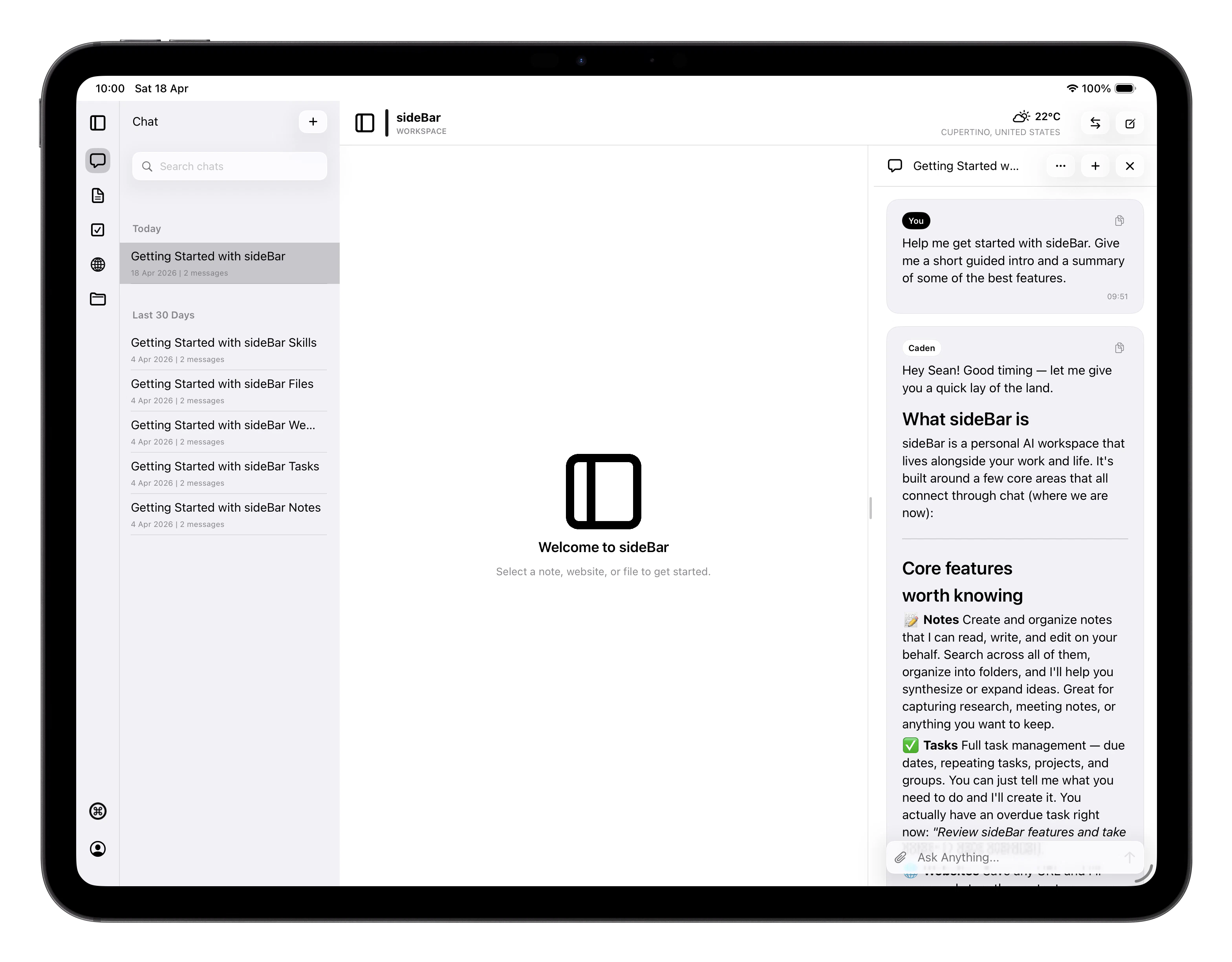 Chat is your main interface with sideBar. You can ask questions, work
through problems, or give instructions, and sideBar can use Skills to
act on your behalf.
## Starting and Managing Conversations
Your conversations are listed with auto-generated titles and a message count so
you can tell them apart at a glance. They're organised by date and you can tap
any conversation to open it. Swipe right on any conversation to rename it, or
swipe left to delete it.
You can also ask sideBar to rename a conversation for you. For now, it only
does this when you ask directly. That can be the current chat or another saved
chat by title or context. If more than one chat seems to match, sideBar asks a
follow-up before it renames anything.
To start a fresh conversation, tap **New** and you're off!
## Sending Messages
Type your message and tap send. Replies stream in as they're generated, so you
see words appear progressively rather than waiting for the whole response. A
**Thinking...** placeholder appears first while sideBar thinks about your
request.
If the latest eligible failed assistant response can be retried, that bubble
shows a retry icon next to the error pill. Retry removes the failed response
from the conversation and starts a fresh assistant attempt in its place.
If you enable **Assistant reply notifications** in [Settings](/manual/settings),
sideBar can also alert you when a reply is ready while your device is away.
Tapping the notification opens the conversation that received the reply.
You can attach files to any message. Attachments move through three states
before the message is ready to send:
* **Uploading**: the file is transferring; you can cancel at this stage
* **Queued**: the upload finished and the file is being prepared
* **Ready**: the attachment is processed and the message can be sent
Any attached files are then stored in the **Files** section of the app.
If an attachment fails, you can retry it or delete it and try a different file.
To copy any message, tap the copy button once and the content goes to your
clipboard. The clipboard clears automatically after 30 seconds, so copied text
doesn't linger longer than you'd want.
## Skills in Action
When sideBar uses a Skill to answer your message, a skills pill appears in
the response. Each skills pill shows:
* Its **name** for a single skill, or **N skills used** when several skills ran
* Its **status**: running, success, or error
While a skill is active, the skills pill shows its name and current status
at the top of the response.
Multiple skills can run within a single response, so sideBar can do
several things at once to answer your question.
Tap the skills pill to see a plain-language summary of what happened. sideBar
keeps technical inputs, raw result payloads, and recovered internal errors out
of this view.
If a skill creates or opens something you can view in the app, sideBar may add
a button below the response, such as **Open note** or **Open file**. Use that
button to jump back to the result later.
## Context sideBar Receives
Every message you send includes context sideBar uses to give you more
relevant, grounded responses. You don't need to state any of this, it's
included automatically.
### What sideBar knows automatically
Your device sends a few pieces of environment context with every message:
* **Date and time**: the current date, time, and your timezone
* **Location**: your current location (if you've granted permission),
from city level down to country
* **Weather**: current conditions at your location, including
temperature, wind, and precipitation
* **Device**: your operating system (iOS, macOS, etc.)
### What sideBar brings into every conversation
Beyond environment context, sideBar also draws on:
* **Your profile**: name, pronouns, age, job title, employer, and home
location from your account settings if you've shared it
* **What you have open**: if you have a [note](/manual/notes),
[website](/manual/websites), or [file](/manual/files) open in the app,
sideBar can see its content and use it in your conversation
* **Recent activity**: notes, websites, files, and chats you've worked
with today
* **Your tasks**: a snapshot of your current [tasks](/manual/tasks) list.
What's overdue, due today, and what's due tomorrow
* **Your personalisation settings**: your communication style, working
relationship, and sideBar's identity and soul. See
[Personality](/manual/personality) and [Settings](/manual/settings)
* **Relevant skills**: sideBar dynamically selects which of your enabled
[skills](/manual/skills) to include based on your message, so only what's
useful is loaded
### Starting fresh
The very first message in a new conversation includes a short
introduction: your name, pronouns, age, OS, and job, so sideBar
already knows the basics before you've typed anything.
## Offline
Your existing conversations are cached and readable without a connection. You
can browse them and switch between them while offline.
You can't send new messages until you're back online. The composer stays
available, but sending waits for a connection.
## Keyboard Shortcuts
| Shortcut | Action |
| ------------ | ------------------- |
| Cmd+Return | Send message |
| Shift+Return | New line in message |
| Cmd+Shift+F | Attach file |
| Cmd+Shift+R | Rename conversation |
| Cmd+Delete | Delete conversation |
| Esc | Close workspace |
Chat is your main interface with sideBar. You can ask questions, work
through problems, or give instructions, and sideBar can use Skills to
act on your behalf.
## Starting and Managing Conversations
Your conversations are listed with auto-generated titles and a message count so
you can tell them apart at a glance. They're organised by date and you can tap
any conversation to open it. Swipe right on any conversation to rename it, or
swipe left to delete it.
You can also ask sideBar to rename a conversation for you. For now, it only
does this when you ask directly. That can be the current chat or another saved
chat by title or context. If more than one chat seems to match, sideBar asks a
follow-up before it renames anything.
To start a fresh conversation, tap **New** and you're off!
## Sending Messages
Type your message and tap send. Replies stream in as they're generated, so you
see words appear progressively rather than waiting for the whole response. A
**Thinking...** placeholder appears first while sideBar thinks about your
request.
If the latest eligible failed assistant response can be retried, that bubble
shows a retry icon next to the error pill. Retry removes the failed response
from the conversation and starts a fresh assistant attempt in its place.
If you enable **Assistant reply notifications** in [Settings](/manual/settings),
sideBar can also alert you when a reply is ready while your device is away.
Tapping the notification opens the conversation that received the reply.
You can attach files to any message. Attachments move through three states
before the message is ready to send:
* **Uploading**: the file is transferring; you can cancel at this stage
* **Queued**: the upload finished and the file is being prepared
* **Ready**: the attachment is processed and the message can be sent
Any attached files are then stored in the **Files** section of the app.
If an attachment fails, you can retry it or delete it and try a different file.
To copy any message, tap the copy button once and the content goes to your
clipboard. The clipboard clears automatically after 30 seconds, so copied text
doesn't linger longer than you'd want.
## Skills in Action
When sideBar uses a Skill to answer your message, a skills pill appears in
the response. Each skills pill shows:
* Its **name** for a single skill, or **N skills used** when several skills ran
* Its **status**: running, success, or error
While a skill is active, the skills pill shows its name and current status
at the top of the response.
Multiple skills can run within a single response, so sideBar can do
several things at once to answer your question.
Tap the skills pill to see a plain-language summary of what happened. sideBar
keeps technical inputs, raw result payloads, and recovered internal errors out
of this view.
If a skill creates or opens something you can view in the app, sideBar may add
a button below the response, such as **Open note** or **Open file**. Use that
button to jump back to the result later.
## Context sideBar Receives
Every message you send includes context sideBar uses to give you more
relevant, grounded responses. You don't need to state any of this, it's
included automatically.
### What sideBar knows automatically
Your device sends a few pieces of environment context with every message:
* **Date and time**: the current date, time, and your timezone
* **Location**: your current location (if you've granted permission),
from city level down to country
* **Weather**: current conditions at your location, including
temperature, wind, and precipitation
* **Device**: your operating system (iOS, macOS, etc.)
### What sideBar brings into every conversation
Beyond environment context, sideBar also draws on:
* **Your profile**: name, pronouns, age, job title, employer, and home
location from your account settings if you've shared it
* **What you have open**: if you have a [note](/manual/notes),
[website](/manual/websites), or [file](/manual/files) open in the app,
sideBar can see its content and use it in your conversation
* **Recent activity**: notes, websites, files, and chats you've worked
with today
* **Your tasks**: a snapshot of your current [tasks](/manual/tasks) list.
What's overdue, due today, and what's due tomorrow
* **Your personalisation settings**: your communication style, working
relationship, and sideBar's identity and soul. See
[Personality](/manual/personality) and [Settings](/manual/settings)
* **Relevant skills**: sideBar dynamically selects which of your enabled
[skills](/manual/skills) to include based on your message, so only what's
useful is loaded
### Starting fresh
The very first message in a new conversation includes a short
introduction: your name, pronouns, age, OS, and job, so sideBar
already knows the basics before you've typed anything.
## Offline
Your existing conversations are cached and readable without a connection. You
can browse them and switch between them while offline.
You can't send new messages until you're back online. The composer stays
available, but sending waits for a connection.
## Keyboard Shortcuts
| Shortcut | Action |
| ------------ | ------------------- |
| Cmd+Return | Send message |
| Shift+Return | New line in message |
| Cmd+Shift+F | Attach file |
| Cmd+Shift+R | Rename conversation |
| Cmd+Delete | Delete conversation |
| Esc | Close workspace |